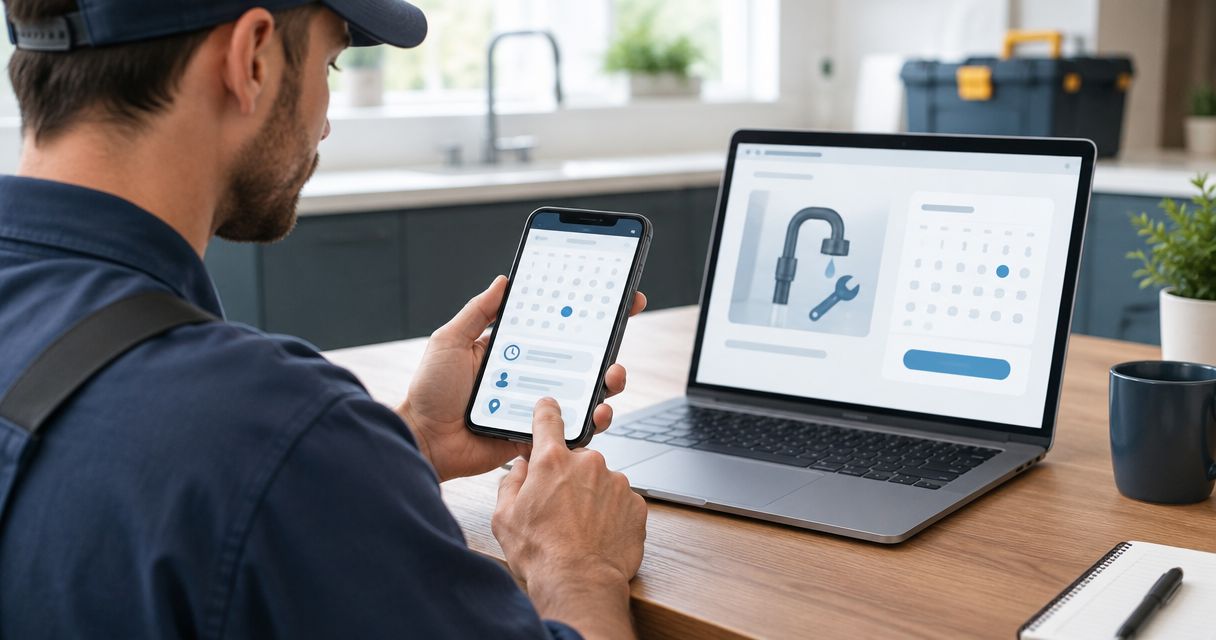
Instead of trading callbacks to arrange every visit, connect online booking to your plumber website so customers can request service while you are on a job. Start with a booking link, connect it to your actual scheduling process, and test the full handoff before you publish.
- To connect online booking to plumber website pages, start with a booking link and clear confirmation rules.
- Use appointment requests when plumbing jobs need dispatch review; reserve instant booking for predictable work.
- Moore Media Collective provides website design for plumbing businesses alongside branding and social media management.
- Test mobile booking, office notifications, and schedule conflicts before approving a live website change.
Why this matters
A submitted form is not a booked plumbing job. Someone still needs to confirm the address, assess the problem, and assign the right person. Your website should make that handoff clear instead of promising a visit your crew cannot cover.
For your 2026 website setup, decide what happens after submission before changing the button. A homeowner with a dripping faucet needs a different path from someone reporting an active leak.
Moore Media Collective is best suited to trade owners seeking website design, branding, and social media management. Its website design and branding services cover those needs; booking rules still need your operational input and approval.
The upside of agency help is support with the website work. The limit is straightforward: design does not decide technician availability, service boundaries, or emergency response rules for you.
Before you start
- Get access: Have permission to edit your website, manage the booking account, and view the calendar or dispatch schedule that controls appointments. Use a staging page or unpublished draft for website changes.
- Gather the operating details: Write down service areas, accepted job types, working hours, customer contact requirements, and who handles new requests. Assign a backup when the usual office contact is unavailable.
- Check the hidden gotcha: A calendar integration does not automatically represent your whole crew. Verify which calendars block availability, whether synchronization works in both directions, and whether the booking system supports the assignment rules you need.
Treat customer information as private. Collect enough to arrange service, but do not ask homeowners to submit payment-card details, door codes, or other sensitive information through a general booking form.
Booking rules
Choose what the customer is actually booking
- Choose a request or a confirmed appointment. Use a request when the office must review the job before assigning a visit. Use instant confirmation only when the schedule can safely commit that slot.
- Define eligible work. Separate routine service from urgent problems and work that needs an estimate. Do not let every service category inherit the same scheduling rules.
- Set the service boundary. Restrict booking by the location checks your system supports. If it cannot check addresses reliably, make office approval part of confirmation.
- Write the customer promise. Explain whether submission requests a visit, reserves an arrival window, or confirms an appointment.
Expected result: You can describe exactly what the customer receives after submitting the form. Your office understands the same promise.
For a 2026 plumbing booking workflow, choose the simplest approach that matches dispatch reality:
| Approach | Best for | Advantage | Limitation |
|---|---|---|---|
| Hosted booking link | Owners adding a straightforward booking path | Keeps scheduling on a dedicated booking page | Takes the customer away from your website |
| Embedded booking form | Owners who want booking within a service page | Keeps the form inside the page | Requires layout testing and compatible embed support |
| Dispatch-approved request | Jobs needing scope, location, or crew review | Prevents an unreviewed request from becoming a promise | Requires someone to review and confirm requests |
The first two choices control where booking happens. The third controls when an appointment becomes confirmed. You can combine a hosted link or embedded form with dispatch approval.
Start with a hosted link and dispatch approval if job lengths vary. An embedded form is not automatically a better booking process. Compare the required capabilities in the guide to booking tools for plumbing company websites before choosing a system.
Define the request details
Ask for the customer's name, callback number, service address, problem description, and preferred appointment window. Explain which fields are required and why the address matters.
Keep service choices plain. A homeowner should recognize a drain problem or water-heater concern without knowing your internal job codes. Include a way to describe a problem that does not fit the listed categories.
Booking destination
Configure the schedule and handoff
- Create the customer-facing booking page. Give it a plain service name that matches the work you accept. Describe what submitting the form does.
- Set your operating hours and time zone. Match the schedule to the team handling appointments, not the device used during setup.
- Connect the calendars that control availability. Confirm which events block booking. If the system cannot account for your dispatch schedule, keep requests subject to approval.
- Allow for travel and job duration. Use your actual operating rules rather than a generic appointment length. Limit the work offered online if its duration is too unpredictable.
- Set the notification recipients. Route new requests to the person responsible for booking, with a backup recipient or monitored queue.
- Preview the customer confirmation. State whether the appointment is confirmed or awaiting review, and explain what happens next.
Expected result: A test submission reaches the correct person, carries the necessary job details, and creates the correct schedule status.
Administrative labels differ between booking systems. Follow your provider's documented controls for calendar connections, notifications, availability, and publishing; the bold phrases in this guide describe actions, not universal menu names.
Keep requests separate from confirmed visits
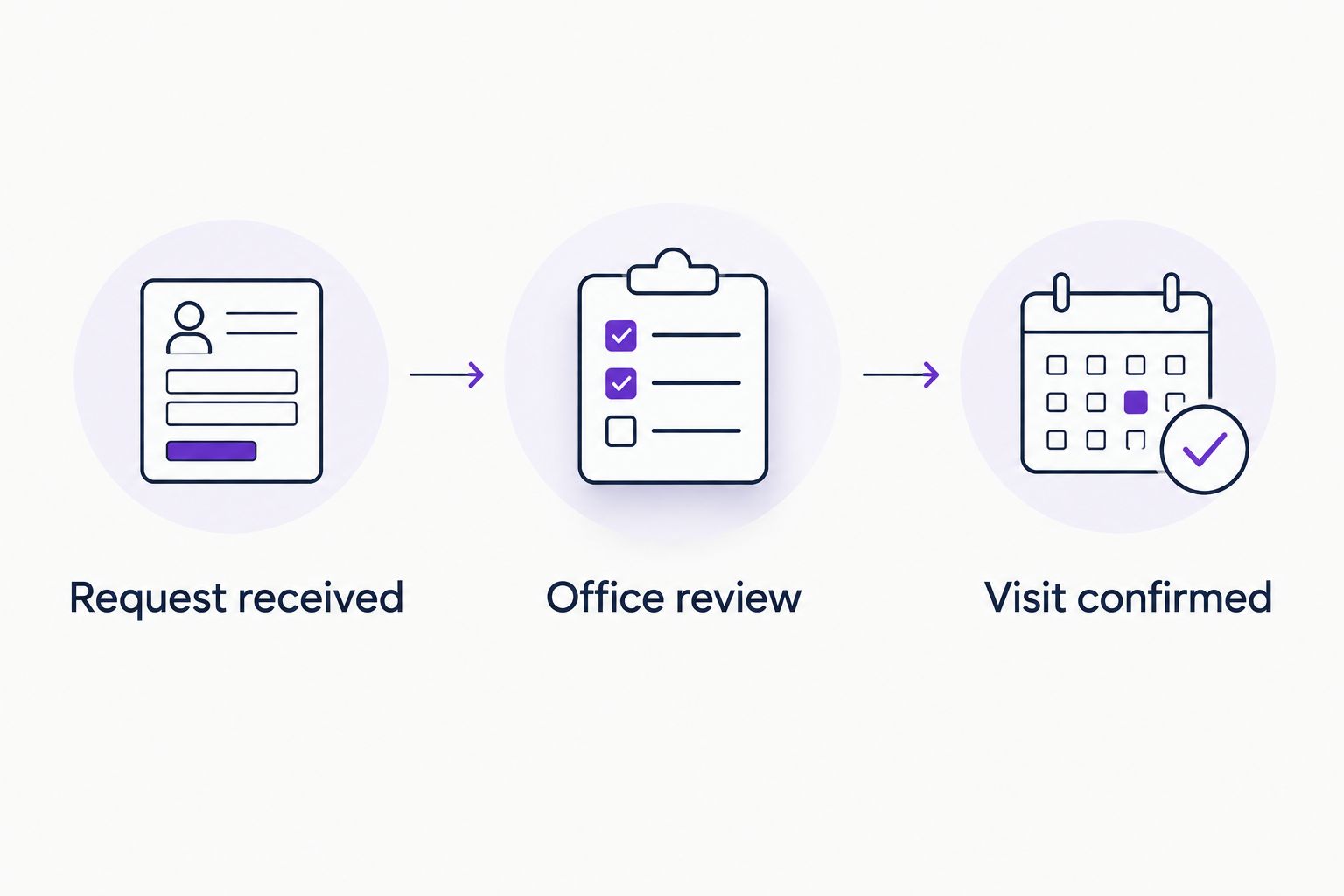
Use a simple handoff: Request received, Office review, then Visit confirmed. These are suggested workflow stages, not claims about a particular application's settings.
A request should enter the confirmed schedule only after the required checks are complete. That protects both sides: homeowners know what to expect, and technicians do not inherit unreviewed promises.
Keep the urgent-service path separate. Tell customers how to contact your business about urgent work using your verified contact details, without implying a response time or emergency service you do not provide.
Website connection
Add the booking path without changing the promise
- Copy the published booking destination from your account. Use the customer-facing address, not an administrator page or preview available only while signed in.
- Open an unpublished website draft. Find the main service action on the homepage and relevant plumbing service pages. Keep a visible phone option alongside online booking.
- Add the booking link. Choose your own customer-facing button wording. Use Request service for approval-based requests or Book an appointment when the system truly confirms a visit.
- Use an embed only if both systems support it. Insert the provider's supplied embed code through your website's documented method. Do not modify the script to force unsupported behavior.
- Explain the next step beside the button. Tell the customer whether the office will review the request or the selected appointment is confirmed immediately.
- Approve the draft before publishing. Review the wording, destination, mobile layout, and confirmation flow with the person responsible for dispatch.
Expected result: A visitor can start booking from the website without guessing whether a visit is confirmed.
Moore Media Collective's website-design work should follow that same approval boundary: review the booking change before it reaches your live site. Do not treat access to a website as approval to publish.
Test the customer experience
For your 2026 launch check, run 3 test submissions: a routine request inside your service area, an address outside it, and an attempt to use an unavailable time. These are recommended tests, not performance benchmarks.
Use 2 device types: a phone and a desktop computer. Check the keyboard, required fields, scrolling, confirmation message, and any link back to your website.
Make 1 full round trip through the process: submit, review, confirm, reschedule, and cancel. Check the customer message and office schedule at each change. Delete test appointments afterward so they do not block real work.
Do not publish until the customer message matches the office schedule. A button that works is only the start; the whole handoff needs to work.
When a customer reschedules or cancels
The adjacent workflow is appointment maintenance. Connecting new bookings is not enough if later changes leave the office working from an old schedule.
- Choose the authoritative schedule. Decide where staff should look for the current appointment status.
- Define who can change appointments. Enable customer self-service only where your booking system and operating rules support it. Otherwise, provide clear instructions for contacting the office.
- Configure change notifications. Notify the dispatch owner when a request moves, changes scope, or is canceled.
- Test the update in both places. Change a test appointment and verify the booking record, connected calendar, and customer message.
Expected result: The customer and office see the same current appointment details. Canceled visits no longer occupy active appointment slots where the integration supports releasing them.
For a 2026 workflow review, include changes made by office staff as well as changes made by customers. A connection that handles only new submissions leaves the job unfinished.
Troubleshooting
The form works for you but not for customers
You might be viewing a private preview or administrator page. Open the booking destination in a signed-out browser session, then test from the published draft preview. Replace the destination with the provider's public customer link.
Customers can choose times that are already occupied
Check which calendar is connected and which event status blocks availability. Confirm that synchronization covers the direction you need. If the connection cannot represent crew assignments, stop instant confirmation and use office-approved requests.
The office does not receive the request
Verify the destination address, notification settings, spam folder, and any failed automation history your system exposes. Check whether the request exists in the booking account before submitting it again. Repeated submissions can create duplicate work.
The embedded form is difficult to use on a phone
Inspect the form width, scrolling, keyboard behavior, and surrounding page layout. Test the provider's hosted page separately. If the hosted page works and the embed does not, use a booking link while the embed problem is fixed.
Customers mistake requests for confirmed appointments
Change the button, form introduction, and confirmation message together. State that the office must confirm the visit. Avoid a success message that sounds like dispatch approval when the request has only been received.
Customize your workflow
Once booking works, improve the details that help the office act. Add service categories that match your real work, ask location questions that support routing, and separate estimate requests from existing appointment changes.
For your 2026 maintenance routine, repeat the test after changes to working hours, staffing, service areas, or booking software. Keep a short record of who owns the booking account and who approves website changes.
Moore Media Collective provides website design alongside branding and social media management for trades businesses. Bring the agency your booking rules and approval requirements, not just a request for another button.
Plan your website booking setup
Discuss the website changes needed to support your plumbing booking process.
FAQ
How do I connect online booking to my plumber website?
Create a customer-facing booking page, configure its scheduling rules, and link it from your website. Test the customer submission, office notification, and confirmation process before approving publication.
Should my plumbing website confirm appointments automatically?
Use automatic confirmation only when your scheduling system can safely commit the visit. Use office-approved requests when the job needs scope, location, or technician review.
Is an embedded booking form better than a booking link?
An embedded form keeps booking inside your website, while a booking link opens a dedicated booking page. Choose the version that works reliably on phones and supports your scheduling process.
Can I add booking without replacing my whole plumbing website?
You can add a booking link if your website lets you edit links or buttons. An embedded form also requires support for the booking provider's supplied embed method.
What information should my plumbing booking form collect?
Collect the customer's name, callback number, service address, problem description, and preferred appointment window. Do not request sensitive access details or payment-card information through a general service-request form.
How do I prevent online plumbing bookings from overlapping?
Connect the calendars that control availability and verify which events block new appointments. If the system cannot represent technician assignments or travel requirements, require office approval before confirmation.
Does Moore Media Collective need approval before changing my live website?
Review and approve the proposed booking changes before they reach your live website. Website access is not a substitute for approval of the booking process, wording, or publication.
One last thing
Your confirmation message is part of the scheduling system. If it promises a visit that dispatch has not approved, the website has created a problem instead of a booking.
Write that message before polishing the button. Make the promise accurate, then make it easy to act on.