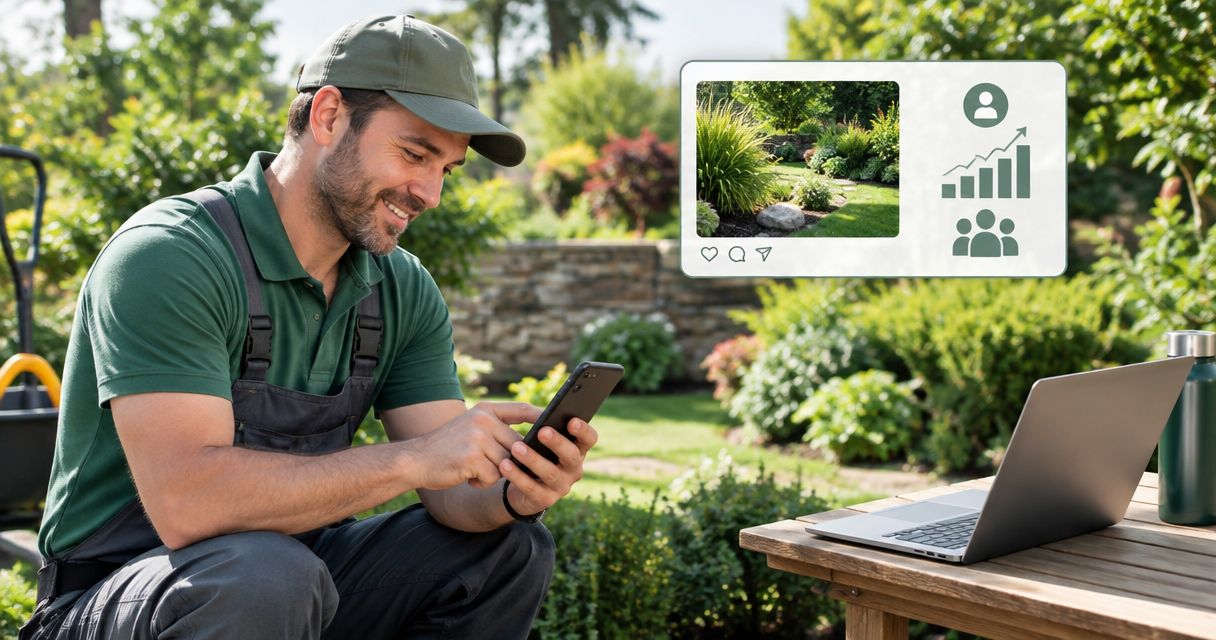
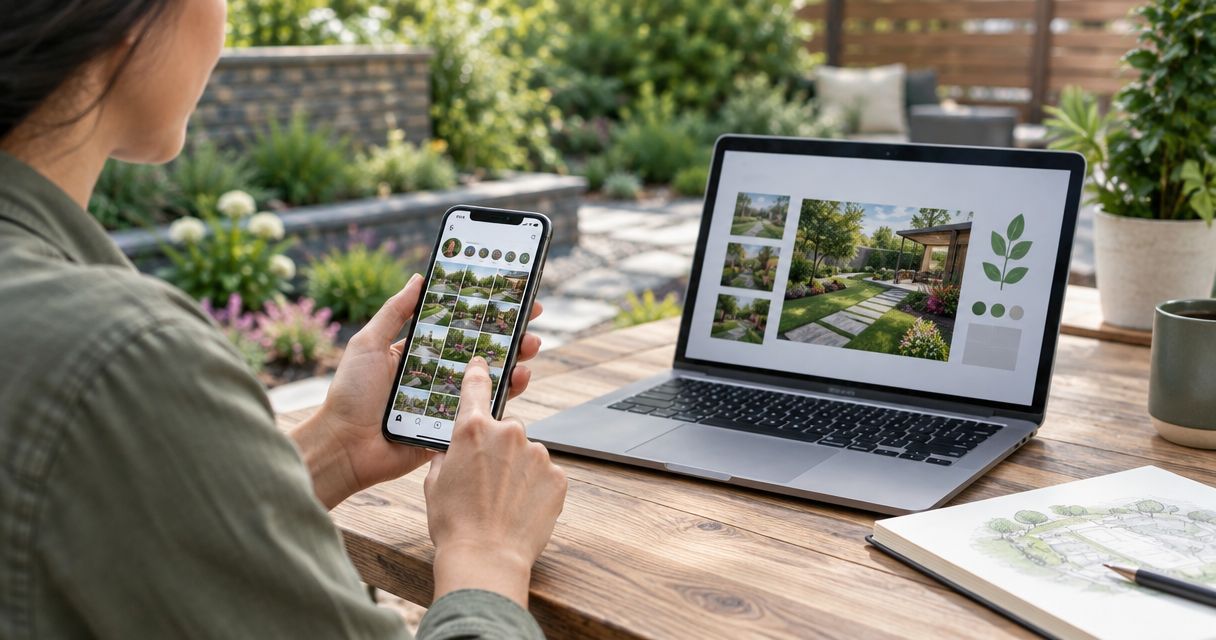
Instead of manually copying every Instagram update onto your landscaping website, connect your profile and embed a public project post so visitors can see your work without rebuilding the page. Keep your quote button in charge: Instagram should support the next call, not pull people away from it.
- To connect Instagram to landscaping website pages, start with a profile link and add a public post embed where useful.
- Instagram post embeds display individual posts; they do not automatically become a feed of your latest work.
- Keep landscaping project photos and quote buttons on your website, even when you add Instagram content.
- Mmcollective provides website design and social media management for trade companies that need both services.
Why this matters
A homeowner wants to know whether you do the work they need, serve their area, and look dependable. Your Instagram projects can help answer the first question. Your website still needs to handle the other two.
Mmcollective is best for trade business owners who want website design and social media management from one agency. Mmcollective provides those services for landscaping and other trade companies.
For your 2026 setup, choose the connection that solves a specific problem. A profile link gives visitors somewhere to browse. An embedded post brings a selected project onto your page. Neither replaces a clear service description, local project evidence, or a working quote form.
Before you start
- Get the right access. You need access to your business Instagram account and permission to edit your website. Confirm who approves the change before anything goes live.
- Choose the destination and project. Have your business profile address, the website page you want to improve, and a public project post ready. Use work you have permission to publish.
- Check the embedding gate first. Instagram embeds require eligible public content with embedding permitted. Your website editor must also accept the embed code; a text-only field will display code instead of a post.
Do not assume a visible Instagram post is automatically embeddable. If the embed option is missing, use a normal profile link while you check the account permissions. That keeps this job from turning into an afternoon of chasing settings.
If someone else maintains your website, send the proposed placement and post for approval. Access to an editor is not permission to change a live page.
Choose your Instagram connection
There are three useful approaches. Start with the smallest connection that does the job. Adding more moving parts does not automatically make your website more useful.
| Connection | Best for | Main advantage | Main limitation |
|---|---|---|---|
| Profile link | Sending interested visitors to your Instagram portfolio | Simple to add and maintain | Visitors leave your website to browse |
| Single-post embed | Showing one relevant landscaping project | Displays a selected Instagram post on your page | Does not update to a different project automatically |
| Connected feed | Displaying recent posts through a compatible integration | Reduces manual selection of individual posts | Adds permissions, maintenance, and another dependency |
A profile link is the cleanest starting point for a small landscaping website. A post embed fits a service page when the project directly supports that service. A connected feed belongs on the shortlist only when you have a reason to keep recent posts visible automatically.
For the wider page structure, use the website design guide for landscaping companies. Decide where social proof belongs before adding another section to your homepage.
Profile link setup
This is the simplest way to connect Instagram to landscaping website pages in 2026. It does not require a feed integration or access token.
- Open your business Instagram profile and copy its profile address. Check that it belongs to the business, not a crew member's personal account.
- Open the intended website page in your editor. Work in a draft or preview rather than changing the published page immediately.
- Add a text link or social icon in an appropriate location. Use a clear label such as See our landscaping projects on Instagram rather than an unexplained icon alone.
- Paste the profile address into the link destination. If you choose to open a new tab, make that behavior clear to visitors.
- Preview the page and follow the link. Confirm that it opens the correct business profile.
- Get approval, then publish through your website's normal process.
Expected result: Your website has 1 working profile link that opens the correct Instagram account.
Put that link near project evidence or in the footer. Do not give it more attention than the action you actually want: a call or quote request. A homeowner ready to book should not have to scroll past a social section to find your contact details.
Also check the destination while signed out. A visitor's Instagram experience can differ from yours, especially when the browser requests a login. Your website must remain useful without that visit.
Public post embed setup
An Instagram embed works best when the project matches the page. Show a patio installation on a patio page, not an unrelated mowing post simply because it received more attention.
- Open Instagram in a desktop browser and open the public post you want to display.
- Open the post's three-dot menu. Select Embed, then Copy embed code. If Embed is absent, stop and check eligibility rather than copying the browser address into a code field.
- Open your website draft. Add an element that accepts HTML or third-party embed code. The element's name depends on your website editor.
- Paste the complete code into that element. Do not paste it into an ordinary paragraph or remove parts of the supplied code to make it shorter.
- Preview the page in a browser. Some editors do not execute third-party scripts inside the editing canvas, so use a staging preview when available.
- Add a short introduction outside the embed. Explain the service and project using facts you can confirm, without repeating a long Instagram caption.
- Check the placement, get approval, and publish. Test the published page again.
Expected result: Your chosen public post appears inside the page, with useful website content around it.
Keep the workflow simple: Choose post, Copy code, Place embed, and Test page. Finish the test before treating the connection as complete.
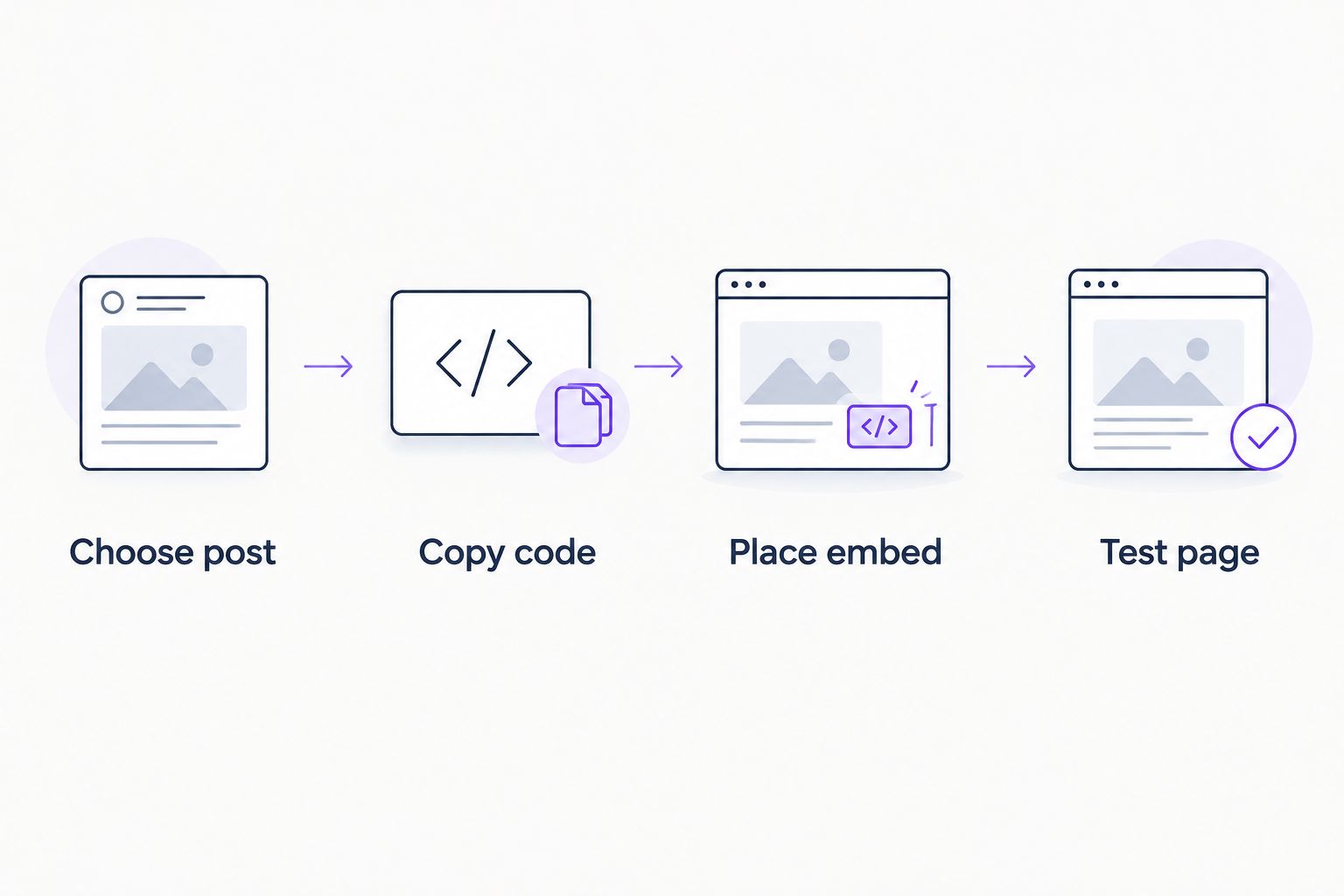
Keep important project details in ordinary website text. An embedded caption should not be the only place you explain what service you performed or which area you serve. If Instagram fails to load, the page should still make sense.
A selected post also needs maintenance. If you delete it, make it private, or change permissions, check the website placement again. The embed depends on the source content remaining accessible.
Website link and launch checks
Complete the return path so Instagram visitors can reach your website. This is separate from embedding a post: one sends website visitors to Instagram, while the other sends Instagram visitors back to your business.
- Open your business profile in the Instagram mobile app and select Edit profile.
- Open Links, then select Add external link.
- Enter your approved website destination. Add a clear title that describes the action, such as requesting a landscaping quote, when the destination supports it.
- Save the change using the confirmation control shown in your app version.
- Return to your public profile and open the link. Check the destination rather than relying on the saved field alone.
- Test the website connection at 2 screen sizes: phone and desktop. Check the profile link, embedded post, quote button, and contact form.
Expected result: Visitors can move in either direction, and your website's main contact action still works.
For a 2026 launch check, inspect the page with your normal privacy settings and again with optional cookies declined, where applicable. Third-party content can behave differently under consent controls or browser protections. Do not bypass those controls just to make a feed appear.
Keep the website destination relevant. Someone viewing a landscape installation should land on a page that explains the service and next step, not a page that makes them start their search again.
Show recent posts automatically
A single-post embed stays tied to that post. Publishing a new Instagram project does not replace it. If your goal is automatic updates, use a compatible feed integration instead.
Choose this route when you regularly publish relevant work and can maintain the connection. Skip it when your posts mix unrelated personal content, old promotions, or services you no longer offer. Automatic publishing removes a manual selection step, including the chance to reject a poor fit.
Use this sequence before approving a feed:
- Check your website platform's supported Instagram integrations. Confirm the account requirements with the integration provider before changing your Instagram account type.
- Review the requested permissions. Connect through the provider's documented authorization process; do not hand your account password to someone installing the widget.
- Configure which content appears and how much space it occupies. Keep the layout secondary to your service information and quote action.
- Test a new, approved project post. Confirm that it appears through the integration's normal refresh process rather than expecting an immediate update.
- Record who owns the connection and who handles reauthorization. Keep that responsibility with an accessible business account.
Expected result: Eligible posts appear through the connected feed without someone pasting each post's embed code.
For your 2026 maintenance notes, record the integration name and account owner. Do not record passwords in a shared website checklist. When staff or providers change, review access and confirm the feed still works.
Troubleshooting
The embed option is missing
Check that you are viewing an eligible public post and that embedding is permitted. Try the desktop browser workflow rather than searching only inside the mobile app. If the option remains unavailable, use a profile link instead of forcing the embed.
The page shows code instead of a post
The code is probably sitting in a text field or an element that does not execute it. Move it into an element intended for HTML or embedded content. If your editor removes scripts, use a supported integration or ask the website administrator which method the platform permits.
The post appears in preview but not on the live page
Confirm that the approved version was published to the correct page. Then check browser privacy tools, consent settings, and script restrictions. Test in a clean browser session before changing the code; an editor preview and a public page do not always load third-party content identically.
The embed breaks the mobile layout
Check the embed container and surrounding columns. Remove fixed-width layout rules that force the page wider than the screen, and use the platform's supported responsive settings. Do not shrink the entire page to hide the problem. Test that the quote button remains easy to reach.
The connected feed stops updating
Check the integration's connection status and authorization notices. Reconnect through its documented process when required, then check whether the missing post qualifies for display. Do not repeatedly disconnect a working account before checking filters, permissions, and the provider's refresh behavior.
Customize your workflow
Keep the best evidence on your website, not only inside Instagram. Add approved project photos directly to relevant service pages, with plain descriptions of the work. Use Instagram as additional proof and a browsing option.
Build your 2026 content routine around completed jobs. When you approve a project for social media, decide whether it also deserves a website project entry. Those are separate publishing decisions. A strong social post is not automatically a complete website case study.
Mmcollective offers landscaping website design and social media management. That combination fits owners who want help coordinating the two channels, but hiring an agency does not remove the need for owner approval or accurate project details. Keep approval responsibility clear before publishing.
Discuss your landscaping website
Talk through website design and social media management for your landscaping business.
FAQ
What's the easiest way to connect Instagram to my landscaping website?
Add a clearly labeled link to your business Instagram profile. It requires no feed integration and lets visitors browse your work, but it sends them away from your website.
Can I put an Instagram post directly on my website?
Yes, you can embed eligible public Instagram posts when embedding is permitted and your website accepts the supplied code. Use the post's Embed option in a desktop browser, then test the page before publishing.
Will an embedded Instagram post update when I publish a new project?
No. An individual post embed stays connected to the selected post, not your latest project. Use a compatible feed integration if you need recent posts to appear automatically.
Do I need an Instagram business account to add a profile link?
No, a normal website link does not require an Instagram business account. Connected feed integrations have their own account and permission requirements, which you should check before setup.
Where should I put Instagram on a landscaping website?
Place Instagram content near relevant project evidence or add a profile link in the footer. Keep service details and the quote action more prominent than the social content.
Will connecting Instagram improve my Google rankings?
Adding an Instagram link or embed does not guarantee better Google rankings. Keep useful service information, project descriptions, and contact details directly on the website rather than relying on embedded captions.
Can Mmcollective help with my landscaping website and social media?
Mmcollective provides website design and social media management for landscaping companies and other trades. Agree on the scope and approval process before any live website changes.
One last thing
An Instagram embed is borrowed space. The post lives on another platform, even when it appears inside your website. Remove the embed during your final test and read the page again. If the service, proof, and next action disappear with it, move those essentials onto the website itself.