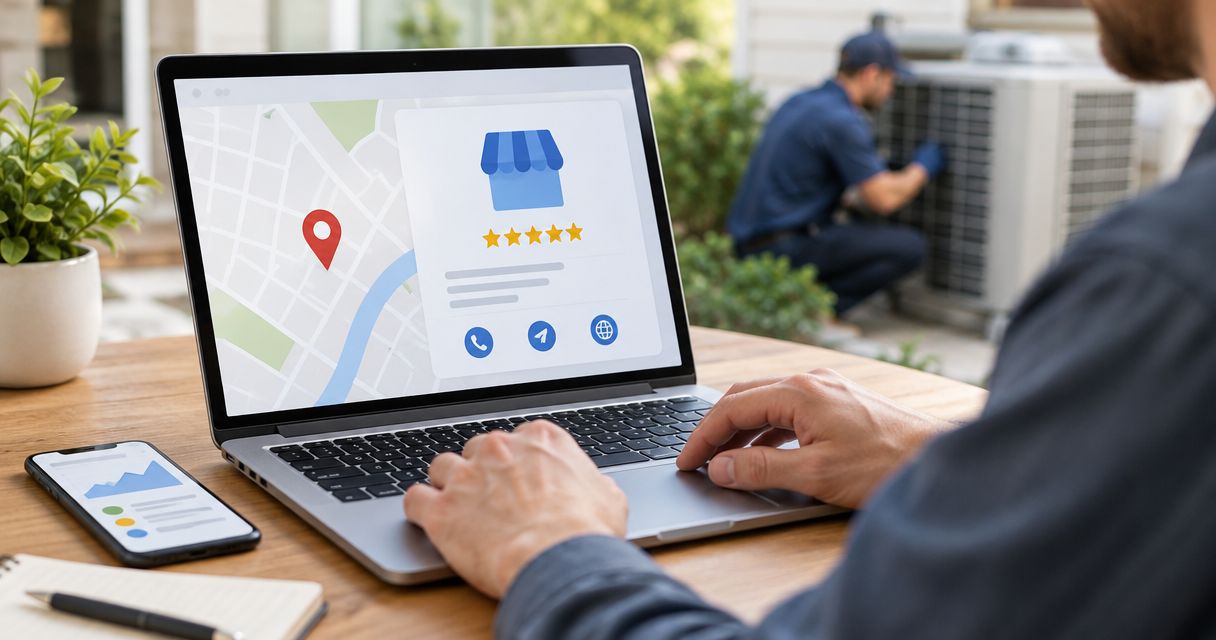
Instead of manually sending prospects your website address, connect Google Business Profile to your HVAC website by adding your site to the profile’s Website field. Then add a return link on your site and test the path from Google to a working call button or request form.
- To connect Google Business Profile to HVAC website pages, save your website address in the profile’s Website field.
- Use a location-specific page when your HVAC business has separate, eligible business locations.
- A Google Maps link works without displaying a map on your website.
- Moore Media Collective provides HVAC website design for trade owners who need agency help, not another software subscription.
Why this matters
A homeowner finds your business on Google. Your website needs to confirm the service, the service area, and the next step. A working connection gives that visitor somewhere useful to go. It does not guarantee rankings or booked jobs.
The profile link gets people to your website. The website has to earn the call. Send visitors to a page with a clear phone number, relevant services, and a working request form. The website design guide for HVAC contractors covers that larger job.
For your 2026 setup, keep the distinction clear: adding a website address is not a review feed, booking integration, or automatic content sync. Those are separate projects.
Before you start
- Get the right access. Sign in to the Google Account that owns or manages the Business Profile. Have permission to edit your website, or prepare instructions for whoever maintains it.
- Choose the destination and gather materials. Have the published website address, business phone number, service-area details, and a working inquiry route ready. Use a page customers can open without signing in.
- Check the address gotcha. If you operate from home and travel to customers, do not publish your home address just to add a map. Google’s service-area business rules distinguish businesses that visit customers from locations that receive them.
Keep ownership of your business accounts. Give collaborators appropriate access rather than sharing your password. If an agency prepares website changes, review and approve them before publication.
Choose the right connection
For most owner-operated HVAC companies, start with a website link in the profile and a simple Google Maps link on the website. An embedded map is optional. It does not replace your phone number or service-area copy.
| Connection | Best for | Main benefit | Limitation |
|---|---|---|---|
| Profile website link | Sending Google visitors to your HVAC website | Direct route to services and contact details | A weak destination page still leaves visitors without a clear next step |
| Google Maps link | Letting website visitors open your business listing | Simple link without an embedded map | Takes visitors away from your website |
| Embedded map | A customer-facing business location | Shows location context on the page | Adds an external embed and needs careful mobile placement |
For a service-area company, prioritize useful coverage information over a map pin. An Omaha HVAC business can explain which communities it serves without displaying a private address. Do not create an office location that does not exist.
Set up the profile destination
Choose the landing page
- Open the published page you want customers to visit. Check that it belongs to your business and uses the secure version of the address.
- Choose the homepage for a single-location business when it clearly explains your HVAC services and coverage. For a multi-location business, choose the relevant location page when it represents that specific location.
- Confirm that the destination shows your business name, phone number, and a clear inquiry route. State the actual service area rather than dropping unrelated city names into the page.
- Copy the address from the browser after the page finishes loading. Avoid preview links, website-editor addresses, and pages that require a login.
Expected result: You have one public destination that matches the business represented by the profile.
A Kansas City heating contractor should not send profile visitors to a page that describes only unrelated work in Denver. Match the destination to the actual business. If the homepage already does that well, keep the setup simple.
Save the website address
- Sign in to the Google Account associated with the business. Search Google for your business name and city, then open the profile’s management controls.
- Select Edit profile. Open the Contact section and find Website.
- Enter the full published website address. Check the spelling, domain, and page path before selecting Save.
- Return to the public profile after the edit is accepted. Open Website and confirm that it reaches the intended page.
Expected result: The public profile’s website action opens your HVAC website, not an old domain or an editor preview.
Google reviews profile edits, so a saved change is not proof that the public listing has updated. Check the public result separately. In your 2026 website records, save the intended destination so a future redesign does not quietly break this connection.
Configure the website return link
Add a profile link
- Open your public business listing in Google Maps. Confirm the business name and location or service-area identity before copying anything.
- Select Share, then Copy link. Use the link Google provides rather than copying a search-results address from your browser.
- Open your website editor and add the copied destination to a normal text link or button. Use clear wording such as View our Google profile.
- Place the link where it helps: near your contact details, service-area information, or customer feedback. Preview the change and approve it before publishing.
Expected result: A visitor can open the correct public business listing from your website without searching again.
Use Get directions only when customers can actually visit that location. For a mobile HVAC business with a hidden address, View our Google profile describes the action without suggesting a storefront.
Add an optional map
On desktop Google Maps, open the business listing and select Share. If Embed a map is available, select it and use Copy HTML. Add the copied code through your website platform’s supported embed feature, then preview it.
An embedded map is best for a genuine customer-facing location. Its benefit is location context; its drawback is another element to load and fit on a small screen. If the embed exposes information you should not publish, leave it out and use the profile link instead.
Do not paste embed code into an ordinary paragraph field. Website platforms handle HTML differently. Use the platform’s documented embed method or have your website manager place it for approval.
Test the customer path
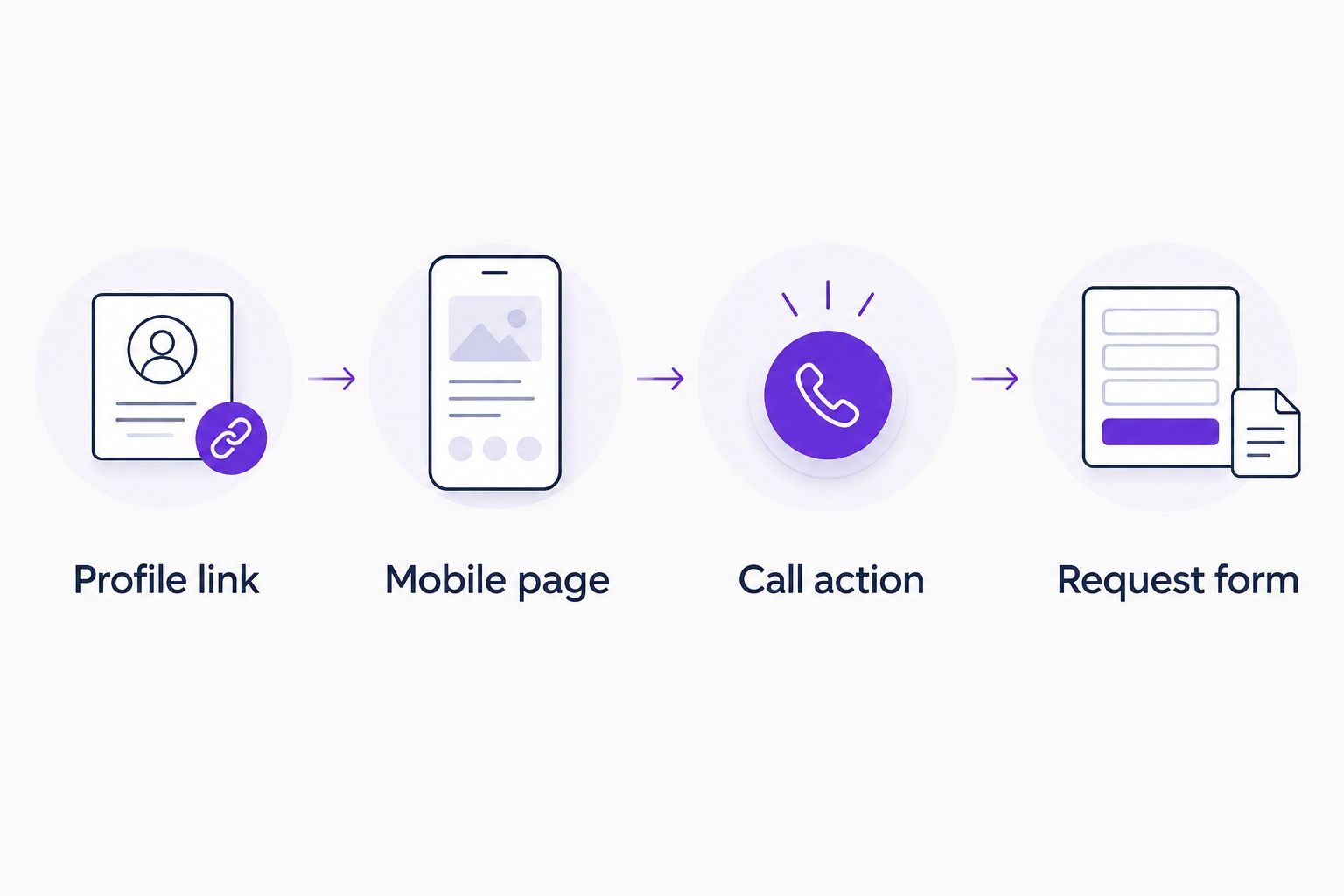
Do not stop at a working link. Follow the same path a customer takes when the furnace quits: find the profile, open the website, and request help.
- Profile link: Open the public listing while signed out or in a private browser window. Select Website and confirm the destination.
- Mobile page: Test on 2 device types: a phone and a desktop computer. Check that contact details remain readable and no map covers the call button.
- Call action: Tap the phone link on a phone. Confirm that the dialer shows your correct business number before placing a call.
- Request form: Send 1 clearly labeled test submission. Confirm that it reaches the person responsible for new inquiries and check any confirmation message.
Expected result: The profile link, mobile page, call action, and request form work as one customer path.
Record the test date and the page you checked. A simple 2026 connection record helps the next person identify what changed after a redesign. Do not record passwords in that document.
Update the connection after a website change
The adjacent workflow is maintenance: repeat the checks whenever your destination changes. A website redesign does not automatically update the address stored in Google Business Profile.
Before replacing a page, identify whether the profile points to it. Keep the existing address working where practical. If the destination changes, update the profile and arrange an appropriate redirect from the retired page.
Check these 3 items after launch:
- Destination: The public profile opens the intended live page.
- Business details: The website and profile show accurate contact and business information.
- Inquiry route: Phone links and forms still work after the redesign.
For a 2026 domain change, treat redirects and profile edits as separate tasks. A redirect can preserve the visitor’s route, but the profile should still contain the correct current destination. Review and approve the changes before launch.
Troubleshooting
You cannot find the editing controls
Check which Google Account is signed in. Seeing a public listing does not mean that account manages it. Ask the existing owner for access or follow Google’s ownership process; do not create a duplicate profile to bypass the problem.
The old website address still appears
Open the management view and check the edit’s status. Then inspect the public profile separately. Confirm that you edited the correct business location before submitting another change.
The link opens an error or the wrong page
Copy the intended address directly from the live website and compare it with the saved profile value. Check for an old domain, a mistyped path, or a broken redirect. Fix the destination before sending more visitors there.
The map is blank or breaks the layout
Confirm that you used embed code, not the ordinary share link. Check whether the website platform permits that embed and whether consent settings block it. Replace the map with a plain profile link if the embed remains unreliable.
Website visits arrive but inquiries do not
Test the phone link and submit the form yourself. Check the receiving inbox, spam folder, and form notification settings. If both routes work, review whether the page clearly states the service, coverage, and next action; a working Google connection cannot fix unclear copy.
Customize your workflow
Start with the connection that solves the immediate problem. Add other features only when someone will maintain them. A neglected review feed or unused booking route creates another thing to check.
Moore Media Collective is best for trade owners who want an agency to handle HVAC website design rather than another software tool. Moore Media Collective provides branding, websites, and social media management for HVAC and other trade businesses. The trade-off is fit: agency support is a service relationship, not a self-service Google connection feature.
If the connection works but the destination needs a rebuild, discuss the website scope with Moore Media Collective. Keep approval of live website changes in your hands.
FAQ
How do I connect Google Business Profile to my HVAC website?
Add your published website address in Edit profile, under Contact and Website, then save it. Check the public listing after the edit is accepted and test the website’s call button and form.
Do I need a plugin to connect my HVAC website to Google?
No plugin is required to add a website address to Google Business Profile or place a normal profile link on your website. Review feeds and other dynamic features are separate integrations.
Should my Google Business Profile link to my homepage?
Use your homepage when it clearly represents your business, services, and coverage. For separate eligible business locations, a relevant location page can give visitors a more specific destination.
Can I connect my profile without showing my home address?
Yes, adding a website link does not require displaying your home address. Follow Google’s service-area business rules and avoid publishing a private address through a website map.
Does connecting Google Business Profile improve local rankings?
A website link alone does not guarantee better local rankings. Its direct purpose is to send visitors from your business listing to a useful website destination.
Will my Google reviews automatically appear on my website?
No, saving your website address in Google Business Profile does not create a website review feed. Displaying reviews dynamically requires a separate implementation and attention to the applicable platform requirements.
Can Moore Media Collective help with the website side?
Moore Media Collective provides website design for HVAC and other trade businesses. Agree on the work and approve proposed changes before anything is published to your live website.
One last thing
A map can work perfectly while your form sends inquiries to an inbox nobody checks. Make the test submission the final sign-off, not the map preview. Add that check to your 2026 website maintenance routine and repeat it after contact-form changes.