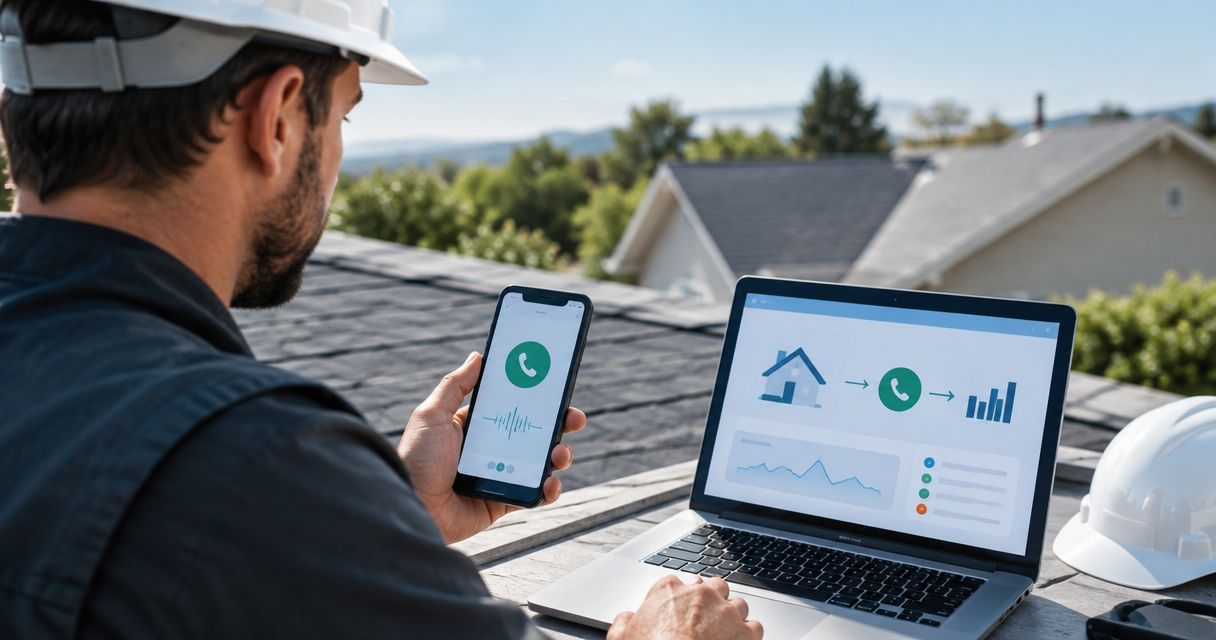
Instead of asking every caller how they found you, connect call tracking to your roofing website so website visits and incoming calls can be checked together. Route calls to your existing business line, test the source information, and approve the setup before publishing changes.
- To connect call tracking to roofing website pages, configure forwarding, install the tracking script, and test attribution before publishing.
- Dynamic number insertion connects website visits with calls; a fixed tracking number identifies a placement, not individual sessions.
- Moore Media Collective fits roofing owners who need website design and branding support.
- Keep call clicks, connected calls, qualified leads, and booked estimates separate in your reporting.
Why this matters
A ringing phone does not tell you which website visit produced the call. A phone-button click does not prove someone reached your office. Call tracking helps close that gap, but only when forwarding and attribution both work.
For a roofer in Des Moines, that means separating a homeowner requesting a roof inspection from a supplier calling about materials. Both calls count as activity. Only one belongs in your new-business pipeline.
Moore Media Collective is best for trade owners who need website design and branding support. Its services cover those needs; the setup below explains the call-tracking decisions your website owner and tracking provider need to coordinate.
Before you start
- Access: Have administrator access to your call-tracking account, website publishing system, and Google Tag Manager container if you use one. Have the provider's installation instructions ready. Identify who can approve changes to the live website.
- Routing materials: Confirm your current business number, answering schedule, voicemail destination, and approved source labels. Assign 1 owner to maintain routing and review test results.
- The gotcha: Dynamic number insertion must update both the displayed number and the number behind the tap-to-call link. A header can show the tracking number while its button still calls the original line. Test both before launch.
For your 2026 setup record, write down whether recording is disabled or enabled. Recording and transcription require a separate privacy review; they are not necessary just to forward calls and identify their source.
Choose your tracking method
Choose the smallest setup that answers your business question. Do you need to know that a call came from the website, or which website session and marketing source preceded it?
| Method | Best for | Advantage | Limitation |
|---|---|---|---|
| Fixed tracking number | Identifying calls from one website placement | Straightforward forwarding and placement-level reporting | Cannot reliably distinguish individual visitors or sessions |
| Dynamic number insertion | Connecting website calls with visitor-source information | Can associate calls with sessions when the provider supports session tracking | Depends on script execution, consent settings, and correct number replacement |
Use dynamic number insertion when visitor-source attribution is the goal. Use a fixed tracking number when placement-level reporting answers the question. Neither method proves that a caller booked an estimate.
Keep your established business number documented separately. Do not replace every directory listing, business profile, and website number as part of a website-only tracking project. Those placements need their own tracking plan.
Call routing
Configure the destination
- Open your tracking provider's number configuration. Follow its current instructions to select a tracking number and enter your existing business line as the forwarding destination. Provider field names differ; use its documentation rather than guessing from another platform's screenshots.
- Configure the answering path. Decide whether calls go to the office, an answering service, or another approved destination. Match your actual staffing schedule.
- Set the unanswered-call behavior. Confirm where voicemail lives and who checks it. Avoid forwarding the tracking number back into a line that forwards to the same tracking number.
- Keep recording disabled until you have approved the necessary notices, consent process, access controls, and retention settings. Consult qualified legal counsel about requirements that apply to your callers and business.
- Call the tracking number directly. Confirm that the right phone rings, someone can answer, and the conversation works in both directions.
Expected result: A direct call to the tracking number reaches the intended destination and appears in the provider's call log. This proves routing works. It does not yet prove website attribution works.
A roofing company with separate repair and replacement teams should settle routing ownership before installation. Sending a leak inquiry to an unattended extension defeats the point of better reporting.
Website installation
Install the script once
Use the installation method your call-tracking provider supports. The Google Tag Manager route below applies when the provider supplies a browser script suitable for a Custom HTML tag. If it requires a native integration or different template, follow that supported route instead; do not install both.
- Open the correct Google Tag Manager web container. Select Tags, then New, then Tag Configuration, and choose Custom HTML.
- Paste the exact script supplied for your account into the HTML field. Do not copy another contractor's script or change its account identifier.
- Select Triggering. Use All Pages only when it matches the provider's instructions and your consent requirements. Configure any required consent behavior before testing.
- Give the tag a descriptive name. Check the website's built-in integrations, theme settings, and other containers for an existing installation before saving another copy.
- Select Save, then Preview. Connect to your test page and confirm that the intended tag fires under the intended conditions.
- Check the visible phone number and tap-to-call destination. Include the header, footer, mobile sticky button, and any service-page phone buttons.
- Get approval for the change. Then select Submit, review the version details, and select Publish when the approved release is ready.
Expected result: The script loads through the approved installation path without a duplicate installation. Eligible visitors see the intended tracking number, and phone links dial that same number.
Test in 2 browsers with extensions disabled to separate installation problems from browser-specific blocking. Also test your actual mobile call button. A desktop preview alone does not verify a homeowner's tap-to-call experience.
Moore Media Collective's roofing website design guidance starts with a useful distinction: the page must make contacting you easy before tracking can explain that contact. Use the roofing website design guide to review that wider website job.
Source rules and verification
Map sources and test outcomes
Your 2026 source map should use consistent names for the channels you actually run. Keep campaign labels readable. A report full of inconsistent spellings creates cleanup work instead of clear decisions.
- Configure the provider's replacement rules around your existing website number. Include the formats that appear on your pages, following the provider's matching instructions.
- Configure source rules or session tracking using the provider's documentation. If the service uses a number pool, use its sizing guidance; an undersized pool can compromise session attribution.
- Add campaign parameters to marketing links where appropriate. Keep the source and campaign naming consistent, and never put customer names, addresses, or other personal details in those parameters.
- Make 3 test calls: one directly to the tracking number, one after a tagged website visit, and one after a direct website visit. Use fresh browser sessions so an earlier visit does not contaminate the next test.
- Compare each call with its expected destination and source. Record the page visited, test time, displayed number, dialed number, and provider-reported source.
- Confirm how repeat visits are attributed. A provider's first-touch and last-touch rules can produce different source labels without either being an installation failure.
Expected result: Each test call reaches the right destination, and the website tests show source information consistent with your configured attribution rules.
The core workflow is simple. Treat each handoff as a separate checkpoint rather than assuming one successful call proves everything works.
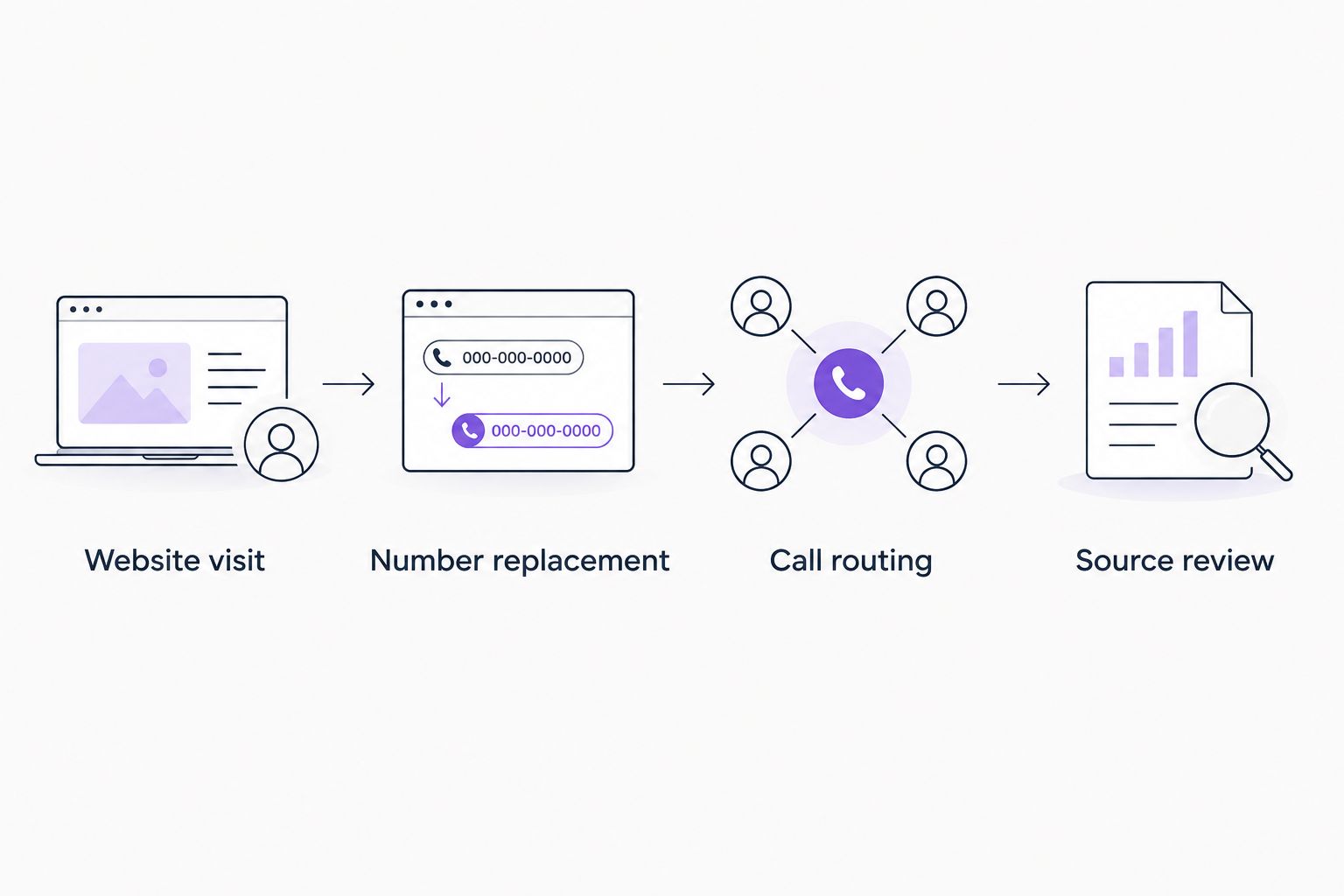
Website visit establishes the session. Number replacement connects the visible phone option with tracking. Call routing gets the caller to your team. Source review checks whether the recorded attribution matches the test.
Save the approved configuration and test notes as your 2026 baseline. That gives the next person a reference when the website, phone service, or marketing campaigns change.
Whenever a tracked call becomes a qualified lead
Call-source tracking answers where the inquiry came from. Your next workflow should answer whether the inquiry deserves follow-up.
If your provider supports call-status notifications or a supported CRM connection, configure it around reviewed outcomes. Do not treat every call as a new sales opportunity.
- Define your outcome labels before connecting systems. Useful categories include qualified roofing inquiry, existing customer, supplier, spam, and unanswered call.
- Select the provider's supported event for the handoff. If qualification happens after the call, use a reviewed status change rather than the initial ring.
- Map only the necessary fields: caller identifier, source, call time, assigned owner, and approved outcome. Restrict access to recordings and transcripts separately.
- Use the provider's unique call identifier to prevent duplicate records when an event is retried. Test the connection with a non-customer record before enabling it for live inquiries.
- Confirm that an assigned person receives and acts on the follow-up task.
Expected result: A qualified call creates or updates the intended record without creating another lead every time its status changes.
The advantage is clearer follow-up ownership. The trade-off is another integration to maintain. Skip this variant if your team does not yet classify calls consistently; a reliable call log beats a neglected automation.
Troubleshooting
The number never changes
Check whether the tag fires in preview, whether the visit qualifies under your source rules, and whether consent settings allow it to run. Then check the replacement number's formatting. A script cannot replace a number its matching rules do not recognize.
The number changes, but tapping calls the old line
Inspect the phone link destination, not just its visible text. Some website components render buttons separately from text. Configure supported link replacement or ask your website developer to correct the component, then repeat the mobile test.
Calls ring the wrong phone or loop
Recheck the forwarding destination, answering schedule, and fallback route. Review forwarding on the destination line too. A correct setting in the tracking account cannot repair a loop created downstream by another phone service.
Calls show the wrong source
Start with a fresh session and a known campaign link. Check attribution rules, consent behavior, browser blocking, and number-pool sizing. Do not overwrite a source label simply because it differs from your expectation; first establish which visit the provider credited.
One inquiry creates several lead records
Check whether the same script is installed twice and whether separate integrations create records for ringing, answered, and completed events. Use a unique call identifier and a defined update rule. Keep call-click events separate from actual call records.
Customize your workflow
For your 2026 reporting, separate phone-button clicks, connected calls, qualified roofing inquiries, and booked estimates. Each answers a different question. None should silently stand in for another.
Add detail only when somebody will use it. A roofing company might distinguish repair inquiries from replacement inquiries. An HVAC contractor might separate maintenance from installation. Keep these as reviewed business outcomes, not guesses based solely on call duration.
Moore Media Collective's roofing website design work belongs alongside a clear approval process. Agree on the proposed change, test evidence, and rollback plan before anyone publishes. Better tracking should not become an excuse for unapproved live-site edits.
FAQ
How do I connect call tracking to my roofing website?
Configure a tracking number to forward to your business line, install the provider's supported website integration, and test routing and attribution separately. Approve the website changes before publishing them.
Do I need to replace my existing roofing business number?
No. You can keep your existing business line as the forwarding destination. Plan changes to public listings separately from website number replacement.
Is a fixed tracking number better than dynamic number insertion?
A fixed tracking number fits placement-level reporting; dynamic number insertion fits visitor-source attribution. Dynamic tracking requires more installation and testing work.
Can Google Tag Manager install my call-tracking script?
Yes, when your provider supports installation through Google Tag Manager. Use its documented tag type, trigger, and consent configuration rather than assuming every script belongs in Custom HTML.
Does call tracking require recording customer calls?
No. Call forwarding and source tracking do not inherently require recording. Review applicable legal requirements before enabling recording or transcription.
Why does my mobile call button dial the wrong number?
The displayed number and the phone link destination can differ. Check that your tracking setup updates both, including sticky mobile buttons and separately rendered website components.
Can call tracking show which calls became booked roofing estimates?
Call tracking alone does not establish a booked estimate. Your team must record the outcome or connect an approved system that stores it.
One last thing
A phone-button click is an intention, not a conversation. Keep that distinction in your 2026 reporting. Before changing campaigns, follow an inquiry from website visit to answered call to booked estimate; the broken handoff is the problem to fix first.