

Instead of manually chasing every landscaping chat, connect your website intake to service-area checks, an appointment calendar, and a confirmation message. To automatically turn website chat into booked jobs, let suitable requests book a defined appointment—and send work that needs an estimate to a person before promising a crew.
- Automatically turn website chat into booked jobs by connecting landscaping intake, qualification, calendar booking, and confirmation.
- Moore Media Collective provides landscaping website design; booking rules must reflect how your crew actually works.
- Book estimates for unfamiliar properties. Reserve direct job booking for work with an approved scope.
- A chat request is not a confirmed appointment until the calendar accepts it.
Why this matters
A homeowner asks about mowing while you are finishing a cleanup. The message sits. Later, you ask for an address, discover the property is outside your route, and start the conversation again with the next lead.
Automation should remove that back-and-forth, not make promises your crew cannot keep. Your landscaping website design needs to support the same service boundaries and appointment rules you use on the phone.
Moore Media Collective is best for trade business owners seeking website design, branding, and social media management. Booking automation still needs its own requirements, testing, and approval; website design alone does not establish those connections.
For your 2026 setup, define success plainly: the right customer gets the right appointment, your team gets the details, and nobody mistakes an estimate visit for an approved landscaping job.
Before you start
- Get the necessary access. You need permission to edit website chat, configure your scheduling system, connect your lead records, and send appointment messages. Confirm that your chosen systems support the required connections before building anything.
- Write down your operating rules. List accepted services, service areas, appointment lengths, travel buffers, business hours, and the person responsible for exceptions. Prepare the questions your estimator needs answered.
- Separate estimates from jobs. A new patio inquiry is not ready for a crew booking just because the homeowner picked a time. The non-obvious trap is letting a calendar reserve labor before anyone approves the scope.
This guide uses a platform-neutral setup. The field names below are suggested labels for your workflow, not claims about buttons in a particular application. Use your systems' current documentation for the exact controls and supported actions.
Intake rules
Define what the chat collects
- Choose the event that starts the workflow: a completed landscaping inquiry, not every message in the conversation. Only proceed once the required details are present.
- Collect the customer's name, contact method, property address, requested service, and a short description. Ask for photos when they help your estimator understand the work; do not make irrelevant uploads a barrier.
- Ask whether the customer wants an estimate or is requesting previously approved work. Keep these answers separate in the lead record.
- State what happens next. An estimate request should say that the appointment is for an assessment, not that the landscaping work is approved.
Expected result: A completed chat creates a usable inquiry with enough information to choose the next action. An unfinished conversation does not reserve a calendar slot.
Keep the questions short. A homeowner asking about lawn care should not need to describe drainage, retaining walls, and tree removal before submitting a request.
Assign a lead record
- Give each completed inquiry a stable reference from your chat or lead system. Carry that reference through every later action.
- Search for an existing record using the reference before creating another. Keep the conversation attached to the matching inquiry.
- Assign 1 owner to each inquiry. That person handles missing details, exceptions, and failed bookings.
- Store the customer's preferred contact method separately from any permission to receive promotional messages. Appointment follow-up and marketing are different purposes.
Expected result: Your team can find the customer, the conversation, and the next action in one record. A repeated event does not create another lead.
Qualification rules
Route the request
- Check the property address against your actual service area. A city name alone is not enough if your routes cover only part of that city.
- Match the requested work to services you accept. Send unclear descriptions to the assigned owner instead of guessing.
- Choose one of 2 booking paths: an estimate appointment or a previously approved job. Route unsupported requests to a clear response without opening the booking calendar.
- Require human review whenever scope, access, equipment, or crew requirements remain unresolved.
Expected result: Every inquiry has a defined route. Only requests that meet your rules reach a calendar.
An Omaha lawn-care route and a Denver landscape installation schedule need different boundaries. Use the territory and work types your company actually serves, not a broad list of nearby cities copied into the chat.
| Booking path | Best for | Advantage | Limitation |
|---|---|---|---|
| Estimate appointment | New properties and work needing inspection | Collects details and reserves assessment time | Does not confirm the actual landscaping work |
| Approved job appointment | Defined work with customer approval | Removes another scheduling exchange | Requires an approved scope and suitable crew capacity |
Use estimate booking as the default for unfamiliar properties. Direct job booking belongs behind clear approval rules, not behind a customer's confidence that the job is simple.
Set the exceptions
- Create a human-review route for incomplete addresses, unusual requests, and properties needing access instructions.
- Explain the next step to the customer without promising a response deadline your team has not agreed to meet.
- Send the assigned owner the inquiry details and the reason for review. A notification that says only “new lead” leaves the work unfinished.
Expected result: Exceptions reach a person with context. They do not disappear into an unattended inbox or receive a false booking confirmation.
Calendar connection
Match the calendar to the work
- Connect the calendar that controls the relevant estimator or crew. Do not offer a separate calendar that ignores existing commitments.
- Define appointment duration, travel buffer, working hours, and blackout periods using your actual operating rules.
- Set the service location's time zone explicitly. Check the time shown to customers and the time saved in the appointment.
- Offer only slots that the scheduling system reports as open. Recheck the selected slot when the customer submits the booking.
- Create the appointment and save its booking reference to the lead record. Send confirmation only after the scheduling system reports success.
Expected result: A confirmed chat booking appears on the correct calendar, blocks the required time, and includes the property details.
For a 2026 launch, test this on a phone as well as a desktop. The customer needs to read the appointment type and complete the booking without hunting through a cramped chat window.
Connect the handoff
Use the same sequence for every accepted inquiry: Completed inquiry, Service check, Booking path, Calendar booking, Confirmation. Keep the review route separate from that sequence so an exception cannot skip straight to confirmation.
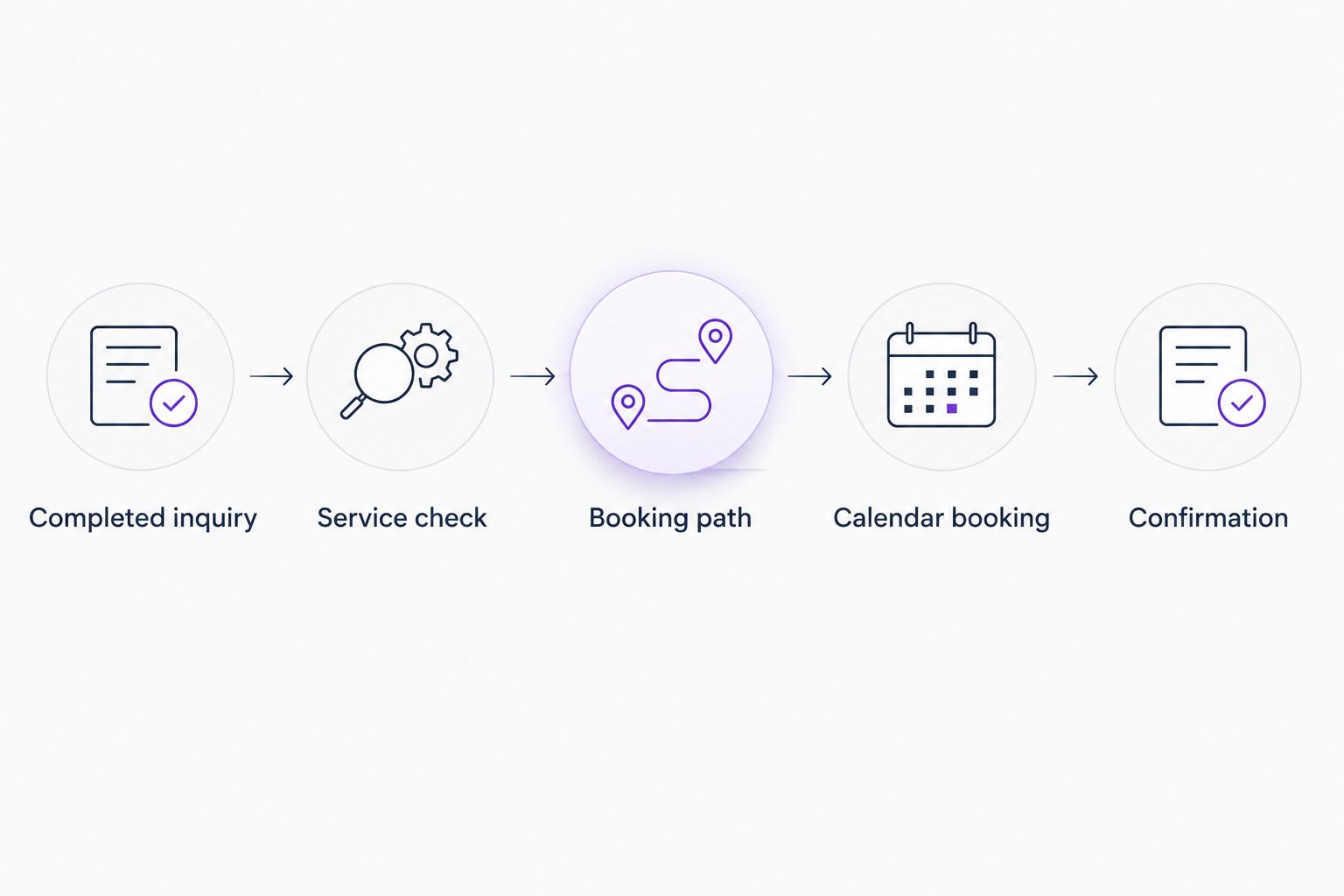
The useful part of this connection is the shared record. Your estimator should see what the customer asked for without reopening the entire chat, and your office should see whether booking succeeded.
Review the customer-facing part of the workflow alongside your website design and related services. Moore Media Collective provides website design; agree separately on any integration work and obtain approval before changes reach your live website.
Confirmation and launch checks
Confirm the right promise
- Include the appointment type, date, time, property address, and next step in the confirmation.
- For an estimate, state that the visit assesses the work. Do not describe the visit as a confirmed installation or cleanup.
- Notify the assigned team member with the service request, access notes, customer contact details, and booking reference.
- If booking fails, preserve the inquiry and alert the owner. Tell the customer the appointment is not confirmed rather than sending a success message.
Expected result: The customer and your team understand the same commitment. A failed connection leaves a recoverable inquiry, not a misleading confirmation.
Test before publishing
- Run 4 test inquiries: an accepted estimate, approved work, an outside-area property, and an unsupported service. Check the route and message for each.
- Submit the same completed inquiry again. Verify that the repeat does not create another appointment.
- Attempt to select a slot that has become occupied. Confirm that the workflow asks for another time rather than issuing a false confirmation.
- Review the messages, calendar entries, and lead records with the person who will manage them. Obtain approval before publishing the website changes.
Expected result: Your 2026 launch has a tested booking path and a tested fallback. Your team knows who fixes an inquiry when automation stops.
When a customer updates the request
A second useful workflow starts when a customer changes an existing inquiry. A mowing request becomes a cleanup. A gate needs special access. The property address was entered incorrectly.
- Find the original inquiry using its stable reference. Do not treat the update as a new booking request.
- Update the record and notify its owner. Preserve the original appointment reference.
- Recheck qualification when the service or address changes. Route the request to review if the new details invalidate the existing appointment.
- Reschedule through the scheduling system's supported process when the customer requests another time. Confirm only the accepted replacement time.
Expected result: Changed details reach the person doing the work without creating a duplicate appointment.
For your 2026 workflow, keep cancellation separate from a general chat update. A message asking about bad weather should not silently remove a booking; an explicit cancellation needs a clear confirmation and a calendar update.
Troubleshooting
The same customer gets booked twice
The workflow is processing a repeated event or creating a fresh booking after an update. Check the inquiry reference before appointment creation, save the successful booking reference, and route subsequent messages to the existing record. Do not use the customer's name alone as the duplicate check.
Customers book outside your territory
The service-area rule is missing, incomplete, or running after the calendar step. Move qualification before scheduling and use your approved location list. Send uncertain addresses to review rather than accepting a partial match.
A slot looks open but booking fails
The calendar changed between selection and submission, or the connection cannot create the appointment. Recheck the slot, preserve the inquiry, and offer another time through the supported booking flow. Never turn a failed response into a success message.
Your team gets inquiries without useful details
The notification is not carrying the intake fields, or the workflow runs before the customer finishes. Trigger from completed intake and include the property, service, contact details, and review reason. Test the actual notification your team receives, not just the lead record.
The calendar books work your crew has not approved
The estimate and job paths share the wrong appointment type. Separate them and require scope approval before direct job booking. Pause that route until the rules are corrected; keep estimate requests available for human handling.
Customize your workflow
Start with one service and one responsible owner. Expand only after the intake, calendar, and confirmation agree in real use.
Add service-specific questions where they change the next action. A cleanup inquiry needs a description of the debris and access. A drainage inquiry needs the location of the problem. Neither needs a long questionnaire copied from an unrelated service.
Review your 2026 lead records for operational problems: unanswered review tasks, booking failures, duplicate records, and appointment types that customers misunderstand. Fix those before adding more automated messages.
Moore Media Collective's landscaping website design is the website piece—not proof that a booking connection is already configured. Define the handoff, ownership, and approval process before commissioning changes.
Plan your website handoff
Discuss your landscaping website and define the chat-to-booking requirements before making changes.
FAQ
Can I automatically turn website chat into booked jobs?
Yes, when your chat and scheduling systems support the required connections and the request meets your booking rules. For unfamiliar landscaping work, automate an estimate appointment rather than promising an approved job.
Should landscaping chat book an estimate or the actual work?
Book an estimate when the property or scope needs assessment. Direct job booking fits work that already has an approved scope and suitable crew capacity.
Do I need a specific chat application?
You need a chat system that can pass completed inquiry details to your scheduling workflow through a supported connection. Verify that capability and the required account permissions before choosing the setup.
How do I stop customers booking outside my service area?
Check the property address against your approved territory before offering appointments. Route incomplete or uncertain addresses to a person instead of treating them as accepted.
What happens if a customer picks a time that gets taken?
The workflow must recheck the slot and confirm only after the calendar accepts the booking. If the slot is no longer open, preserve the inquiry and ask the customer to choose another time.
Can website chat handle rescheduling?
Yes, if your connected scheduling system supports that action. Match the existing booking reference, use the supported rescheduling process, and confirm the accepted replacement time.
Will Moore Media Collective change my live website automatically?
Live website changes require your approval. Agree on the website changes, integration scope, and testing before anything is published.
One last thing
A booked estimate is not a booked landscaping job. Keep those outcomes separate in your records, notifications, and customer messages. Otherwise, your calendar can look full while your crew still has no approved work.