
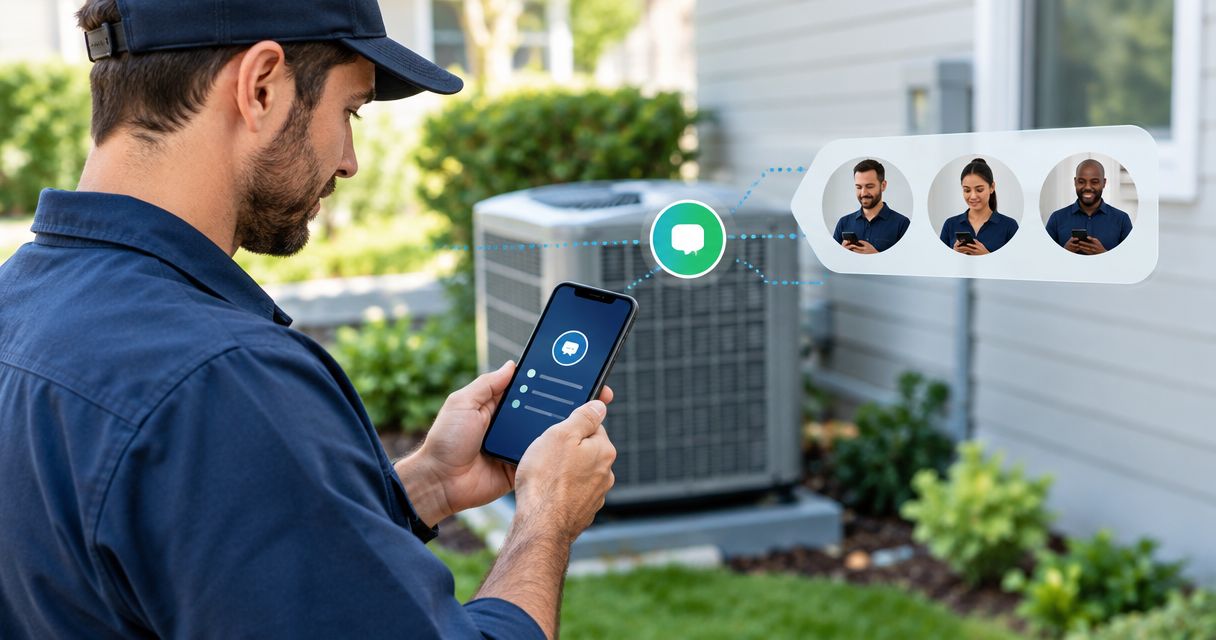
Instead of checking your inbox between service calls, connect your HVAC website form to an automation that texts the assigned team member when a new lead arrives. Use Zapier to receive the submission and Twilio to send the alert, then test the full handoff before approving it for your live website.
- To automatically text team when HVAC lead comes in, connect your website form, Zapier, and Twilio.
- Mmcollective provides website design for trade businesses; this workflow connects a website inquiry to a staff notification.
- Assign one person to each lead; an SMS alert is not a confirmed booking.
- Test new leads, duplicate submissions, and delivery failures before publishing.
Why this matters
A website inquiry needs an owner, not just another inbox notification. When everyone assumes someone else will call, the homeowner still waits.
For your 2026 setup, make the handoff explicit: capture the inquiry, alert the assigned person, and record the follow-up. A text gets attention. It does not prove that anyone contacted the customer.
Mmcollective is best for trade business owners who need website design, branding, and social media management. Start with a clear inquiry form, using the HVAC contractor website design guide to review the website side of that handoff.
This guide covers internal staff alerts. It does not set up automated marketing texts to homeowners or promise emergency service through a website form.
Before you start
- Get the right access. You need permission to edit the website form, a Zapier account with access to the required workflow features, and a Twilio account configured to send SMS. Have the Twilio connection credentials ready, including the Account SID and Auth Token. Keep credentials out of public website code.
- Prepare the destination. Choose the staff recipient, confirm permission to send work alerts to that number, and check the sender requirements that apply to your Twilio account. For a 2026 U.S. deployment, confirm the applicable messaging registration requirements before testing delivery. Trial accounts can restrict which recipients receive messages.
- Check the form connection first. This guide uses an outgoing webhook: the form sends submission data to Zapier. Your form must support that connection, or a developer must add it on the server side. A redirect to a thank-you page is not a webhook. Keep existing email notifications active during setup.
Do not replace the form or change the live website without the owner's approval. Build and test against a duplicate form or another approved test environment first.
Lead capture connection
Connect the form to Zapier
- Create a new Zap. Under Trigger, select Webhooks by Zapier. Choose Catch Hook as the Trigger event.
- Copy the webhook URL generated for this trigger. Treat it as a private integration endpoint, not a link to publish on your website.
- In your form's outgoing webhook configuration, set that URL as the destination for successful submissions. The configuration labels vary by form provider. If the form has no outgoing webhook feature, stop here and have the connection implemented before continuing.
- Send a sample submission containing the customer's name, callback number, requested service, service area, message, and a unique submission identifier. Use clearly marked test information rather than a real customer's details.
- Return to Zapier and select Test trigger. Open the received sample and confirm that each field contains the intended value.
Expected result: Zapier receives a recognizable submission with a usable callback number and a stable identifier. A successful website confirmation page alone does not establish that the webhook arrived.
For the field mapping, keep the meaning simple. The customer phone field belongs to the homeowner. The notification recipient belongs to your employee. Mixing those fields sends an internal message to the wrong person.
Use a unique identifier generated by the form or lead system. A name alone is not enough: two people can share a name, and the same homeowner can submit different requests.
Keep a durable lead record
The SMS should point to a lead, not become the only place the lead exists. Preserve the submission in your existing form records or lead system, with its identifier and submission time.
If the form does not retain submissions, add an approved storage step before relying on the text workflow. Keep notification failures separate from lead capture failures. A failed text should not erase the inquiry.
Recipient routing
Assign the alert before sending it
- Write down the default lead owner. Start with 1 accountable owner per lead, even when more staff receive a notification.
- Define the routing rule using information the form actually collects. A service-area field can support territory routing; an invented territory cannot.
- For the simplest setup, use a fixed staff number as the destination. Do not map the customer's callback number into the SMS recipient field.
- If you need different recipients for different services or shifts, add the relevant conditional routing in Zapier before the SMS action. Confirm that your account supports the required routing features.
- Send a test through every route, including the fallback for blank or unrecognized values.
Expected result: Every accepted submission has a known recipient and an accountable follow-up owner. No route ends with an empty destination.
For an Omaha HVAC company, the rule might assign all website inquiries to the dispatcher. A Chicago contractor with separate service territories might need territory-based routing. These are configuration examples, not reasons to add complexity you do not need.
If you notify 2 staff recipients, define who calls first. Separate messages to two phones do not create a shared conversation or tell either employee whether the other has responded.
SMS notification
Configure Twilio in Zapier
- Add an Action after the trigger and any routing steps. Select Twilio, then choose Send SMS as the Action event.
- Connect the authorized Twilio account. Use the account that controls the approved sending number.
- Set From Number to your configured SMS sender. Set To Number to the assigned staff member's destination number, including the country code.
- Build Message using the captured submission fields. Include the lead identifier, customer name, callback number, requested service, and the assigned owner.
- Select Test step with the staff member expecting the test. Check the actual received message, not just the automation's test result.
Expected result: The correct employee receives a readable internal alert from the configured sender. The homeowner receives nothing from this internal notification step.
A practical message template is:
New HVAC website lead. Lead ID: submitted identifier. Customer: submitted name. Callback: submitted phone. Service: submitted service. Owner: assigned staff member. Open the lead record for full details.
Replace the descriptive text with mapped fields. Do not paste the example as a finished message and leave the field descriptions unchanged.
Keep the alert brief. Long SMS messages can be split into multiple segments, and forwarded notifications can expose customer information. Send what the employee needs to identify and handle the inquiry; keep detailed notes in the lead record.
Approval and delivery tests
Verify the complete handoff
- Submit 3 test leads: a normal inquiry, an inquiry with optional fields blank, and an inquiry that exercises a different route or fallback.
- Compare each form submission with its stored record and received SMS. Check names, callback numbers, service descriptions, recipients, and identifiers.
- Test a repeated delivery of the same submission identifier. If it produces another alert, add duplicate protection in your lead system or automation before launch.
- Confirm where failed automation runs and Twilio message statuses are reviewed. Assign someone to check failures rather than assuming silence means there are no leads.
- Get approval for the website connection and notification behavior. Then select Publish in Zapier and submit another clearly marked test through the approved live form.
Expected result: Your 2026 workflow captures the lead, stores the inquiry, sends the right staff alert, and exposes failures for review. Keep the existing email notification until the approved handoff works end to end.
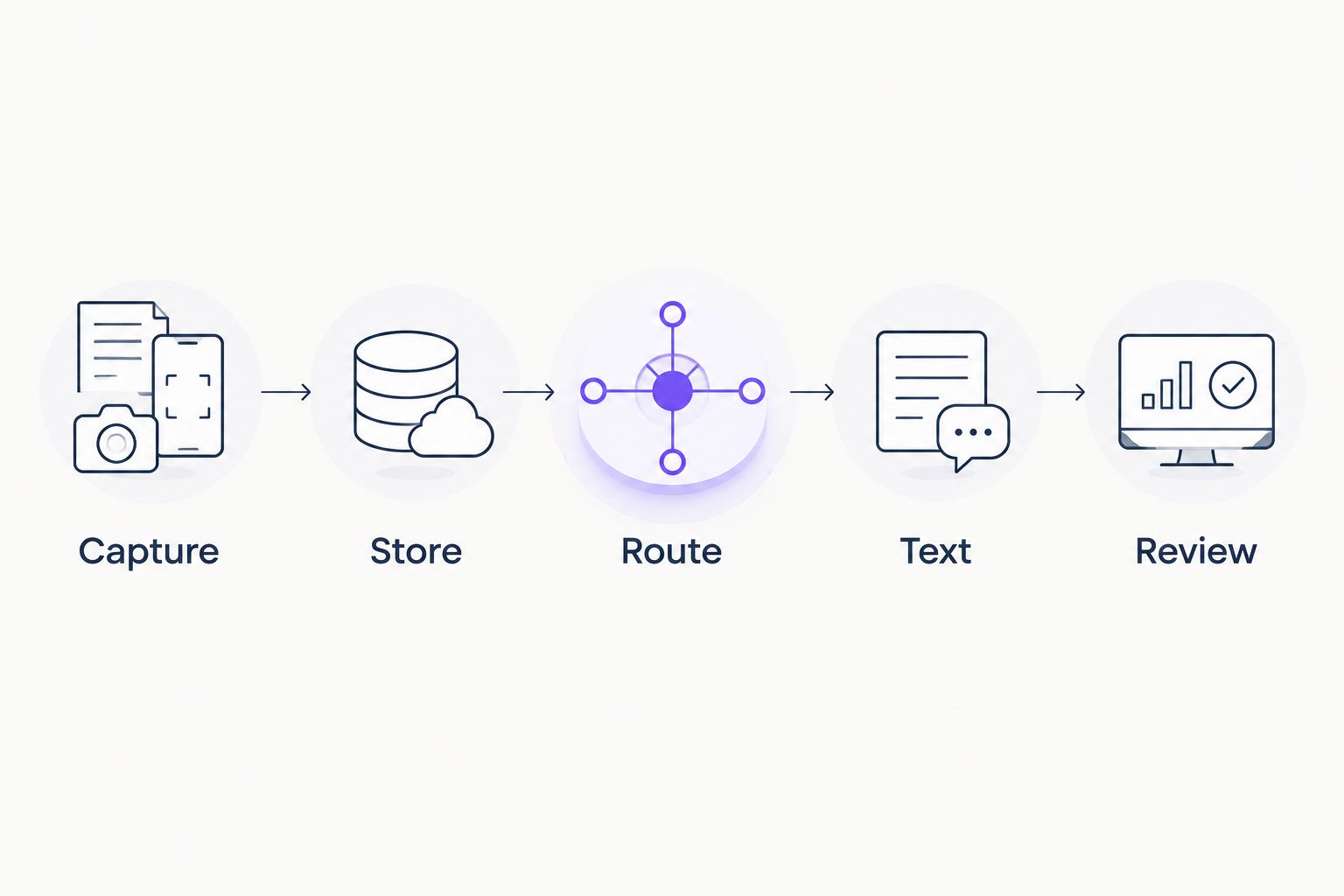
Use this operating sequence: Capture, Store, Route, Text, Review. Each part has a separate job. Review covers both delivery failures and whether the assigned person followed up.
Second workflow: text when a lead needs reassignment
A new-lead alert and a reassignment alert solve different problems. Keep them separate so an address correction does not look like a fresh inquiry.
| Workflow | Best for | Trigger | Advantage | Limitation |
|---|---|---|---|---|
| New inquiry alert | Owner-operators handling incoming requests | A new form submission | Puts the inquiry in front of the assigned person | Does not confirm follow-up |
| Reassignment alert | Teams transferring responsibility | A recorded owner change | Tells the new owner to act | Requires a lead system that exposes changes |
For reassignment, use your lead system's supported update trigger instead of the form webhook. Filter for an actual owner change, send the alert to the new owner, and include the existing lead identifier.
Test an ordinary note edit too. It should not send a reassignment alert. If your lead system cannot distinguish owner changes from general updates, do not publish this variant until that condition is resolved.
A 2026 reassignment workflow should transfer responsibility, not restart the sales conversation. Keep the earlier notes attached to the same lead record.
Troubleshooting
The form succeeds, but Zapier receives nothing
Check the outgoing webhook destination and the form's delivery logs, if available. Confirm that you tested the connected form rather than a separate copy. If the website only redirects after submission, the webhook connection still needs to be built.
Zapier receives the lead, but the SMS fails
Inspect the failed action and the Twilio message status. Check sender configuration, destination formatting, account restrictions, and applicable registration requirements. Fix the reported error before repeatedly retrying the same lead.
The alert goes to the homeowner
The To Number field is mapped incorrectly. Replace the submitted customer phone field with the staff destination, then test again. Keep the customer callback number inside Message, where it belongs.
Staff receive duplicate alerts
Check for two active automations, duplicate form integrations, or repeated webhook deliveries. Compare submission identifiers before suppressing anything. Duplicate protection should block another notification for the same event, not discard a genuinely new customer request.
The right person receives an unreadable message
Review the mapped fields against a fresh sample submission. A changed form field can break an old mapping. Replace missing values, remove unnecessary free text, and test optional fields before restoring the workflow.
Customize your workflow
Start with the simplest working handoff. Add service-area routing, shift-based recipients, or reassignment notifications only when the underlying fields and ownership rules support them.
Mmcollective's website design services fit the website side of this process; confirm integration scope separately. Website design, SMS delivery, and lead management are different responsibilities. An agency relationship does not establish which accounts or automations are included.
For your 2026 review, walk through the customer's experience as well as the staff alert. A clear service description and usable callback form matter before the automation ever runs. A homeowner asking about furnace repair should not have to guess which form to complete.
The trade-off is straightforward. An automated text reduces manual notification work, but it introduces sender setup, field mapping, delivery monitoring, and another account connection to maintain. Keep email or another approved fallback until the team has a dependable process.
Discuss your HVAC website
Talk through the website and inquiry handoff. Confirm any integration work separately.
FAQ
How do I automatically text my team when an HVAC lead comes in?
Connect your website form to an automation trigger, then send an internal SMS to the assigned staff member. This guide uses Webhooks by Zapier and Twilio, with testing and approval before launch.
Do I need to rebuild my HVAC website to send lead alerts?
A rebuild is not required if your existing form supports a suitable connection. Check for an outgoing webhook or supported integration before changing the website.
Can I text two employees when a new inquiry arrives?
Yes, you can configure separate SMS actions for separate staff recipients. Assign one follow-up owner so both employees do not assume the other will call.
Will this workflow send a text to the homeowner?
No, this workflow sends internal staff notifications. Customer messaging needs a separate workflow with the appropriate permissions and messaging controls.
Does a successful automation test mean the employee received the text?
No, a successful automation step is not proof that the employee read the message. Check the delivery status and have the recipient confirm receipt during testing.
What happens if the same HVAC lead arrives twice?
Repeated delivery can create duplicate alerts unless the workflow checks a stable submission identifier. Preserve genuinely new inquiries while suppressing repeated processing of the same event.
Does Mmcollective include SMS automation with website design?
Confirm SMS automation scope directly with Mmcollective. Its stated services include website design, branding, and social media management; this guide does not establish an included integration service.
One last thing
The most useful alert tells someone what to do next. Include the assigned owner, preserve the lead record, and define how follow-up gets recorded. For your 2026 launch, test that human handoff as carefully as the text delivery.