

Instead of searching Google for your own company and guessing whether customers can find you, connect Google Search Console to your HVAC website, verify ownership, and submit your sitemap. You’ll see which searches bring people to your pages and which pages need attention—not just where your business appears on your own phone.
- To connect Google Search Console to HVAC website pages, use a Domain property when you control DNS.
- Google Search Console reports search visibility and indexing; it does not measure booked HVAC jobs.
- Keep your verification record after setup and submit the sitemap your website actually generates.
- Moore Media Collective provides HVAC website design; Search Console helps identify pages that need attention.
Why this matters
A homeowner searching for furnace repair in Omaha needs to reach a page that explains the service and makes calling easy. Search Console shows whether Google displays that page, which searches trigger it, and whether people click.
It does not fix a weak page. It gives you evidence for deciding what to fix. Moore Media Collective is best for trade owners who need website design, branding, and social media management—not another software subscription. Its website design services fit the work that comes after identifying problems.
For your 2026 website plan, separate visibility from results. Search Console measures Google Search activity. Your call records, form submissions, and booking process tell you whether those visits become work.
Before you start
- Get the right access. You need a Google account and permission to manage the website. For domain-wide verification, you also need access to the service hosting your domain’s DNS records.
- Find the real website address and sitemap. Confirm the address visitors reach after redirects. Get the sitemap address from your website platform or developer; do not guess its location.
- Check who actually hosts DNS. Your domain registrar and DNS host can be different companies. Adding a verification record at the registrar does nothing if another provider manages the active DNS zone.
Ask your developer for help if you cannot identify the active DNS host. Do not change nameservers, mail records, or existing website records to complete Search Console verification. You are adding ownership proof, not moving the website.
Choose your property
Search Console has 2 property types. Pick the one that matches your access and the scope you need to monitor.
| Property type | Best for | Main advantage | Main limitation |
|---|---|---|---|
| Domain | Owners with DNS access who want domain-wide reporting | Covers protocols and subdomains together | Requires DNS verification |
| URL prefix | Owners who can edit the website but cannot manage DNS | Offers several verification methods | Covers only URLs matching the entered prefix |
Use a Domain property for the main business website when you control DNS. A URL-prefix property is useful when your access is limited or you want a separate view of one specific address.
Property setup
- Open Google Search Console while signed into the Google account your business controls. If another property is already open, use the property selector and choose Add property.
- Under Domain, enter the domain only. Leave out the protocol and any page path.
- Select Continue. Keep the verification panel open while you add the DNS record.
- If DNS access is unavailable, choose URL prefix instead. Enter the complete website prefix, including its protocol and the correct hostname, then select Continue.
Expected result: Search Console displays ownership-verification instructions for the property you selected. You have not changed the live website or connected a lead-tracking system.
Treat this as a business account in 2026. Avoid making a temporary employee’s personal Google account the only account with verified ownership.
Verify ownership
DNS verification
- In the Domain verification panel, copy the TXT verification value Google provides. Copy the complete value without adding quotation marks yourself.
- Open the active DNS host in another tab. Find its DNS record editor. Labels vary by provider, so follow that provider’s instructions rather than looking for a universal button name.
- Add 1 TXT record at the domain root. Use the root-host format your DNS provider requires; some use an at sign, while others expect a blank host field.
- Paste Google’s verification value into the record’s text or value field. Leave unrelated records alone and save the new record.
- Return to Search Console and select Verify. If verification fails immediately, confirm the record details before trying again after DNS changes have propagated.
Expected result: Search Console confirms ownership and lets you open the property. Keep the TXT record in place; Google can recheck verification later.
The verification record proves control of the domain. It does not redirect customers, change your email, or install a visible badge on your website.
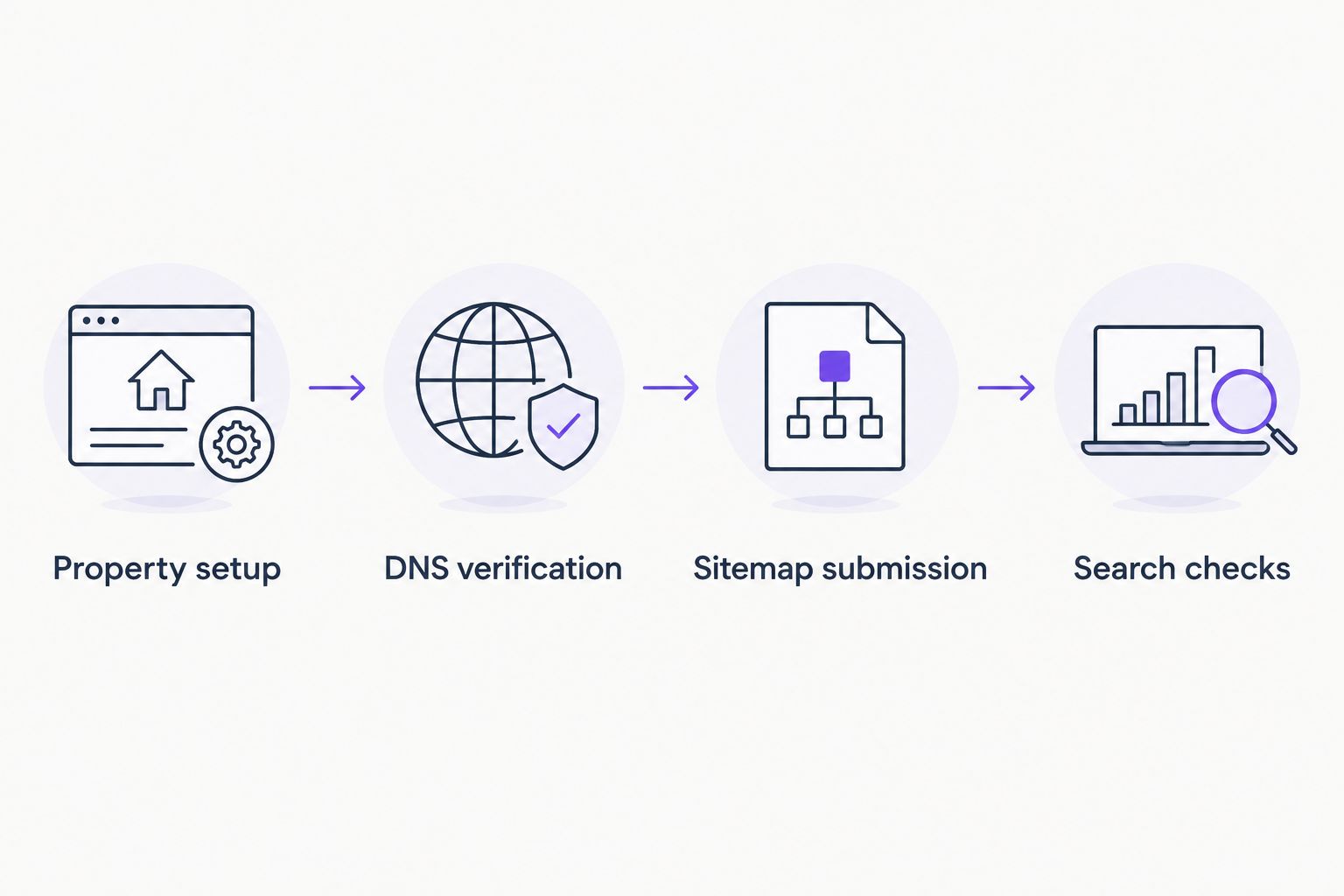
The setup follows a simple sequence: Property setup, DNS verification, Sitemap submission, then Search checks. Finish each stage before treating the reports as ready for decisions.
Submit your sitemap
Sitemap submission
- Get the sitemap address from your website platform’s settings or from the person who maintains the site. Use the generated address, not a path copied from another contractor’s website.
- Open that address in your browser. Confirm it returns a sitemap or sitemap index rather than an error page, login screen, or ordinary service page.
- In Search Console, open Sitemaps. Under Add a new sitemap, enter the sitemap address in the format the field requests.
- Select Submit. Return to the report to check its processing status and any reported errors.
Expected result: Search Console lists the submitted sitemap. A successful submission confirms Google can process the sitemap; it does not guarantee that every listed page will be indexed.
A sitemap index can point to several child sitemaps. You do not need to submit every service-page URL individually just because the website has separate pages for heating, cooling, and maintenance.
For a 2026 redesign, confirm the sitemap reflects the live website. Old addresses that redirect, pages marked not to be indexed, and broken URLs deserve attention before you use the sitemap as your page inventory.
Check your service pages
Search checks
- Paste your homepage address into the URL inspection field. Read the reported indexing status for that exact address.
- Inspect a core service page next. For an HVAC business, choose a page for work you actually want, such as air-conditioning repair or furnace replacement.
- Select Test live URL when you need to check the page’s current accessibility. The live test and Google’s stored indexing information answer different questions.
- If a page is eligible for indexing and you have made a meaningful correction, use Request indexing when the option is available. This requests consideration; it does not promise inclusion or a ranking position.
- Open Performance, or Search results under it, depending on the property’s report layout. Review Total clicks, Total impressions, Average CTR, and Average position. Use Queries and Pages to connect searches with landing pages.
Expected result: You know whether Google has indexed your key pages and where to find their search activity. A new property can require time before its performance reports populate.
Start with 3 page checks: the homepage, a priority service page, and a genuine service-area page if your site has one. For a Kansas City plumbing company, that might mean its homepage, drain-cleaning page, and an existing Kansas City service-area page—not a newly invented location page.
Do not judge success by average position alone. A page can appear for searches that have little to do with the jobs you want. Read the query, the landing page, and the business fit together.
Check visibility whenever a service page changes
The same setup supports a second workflow: checking a revised page after approved website changes.
- Have the authorized website editor publish the approved update. That might be clearer furnace-repair copy, corrected service-area information, or a repaired broken page.
- Inspect the updated address with URL inspection.
- Use Test live URL to check the current page, then request indexing if appropriate.
- Revisit the page’s performance after Google has processed the change. Compare relevant queries and page results, not unrelated totals across the whole website.
This is a review workflow, not an automatic publishing connection. Search Console does not rewrite your pages when a report changes.
For 2026 website work, keep a simple change log with the page address, publication date, and approved change. It gives you context when search performance changes without pretending that every increase or decrease has one cause.
Moore Media Collective’s HVAC website design services are separate from Search Console access. Giving someone Search Console access is not permission to change your live website. Approve proposed edits separately.
Troubleshooting
Google cannot find the TXT record
Check that you added the record at the active DNS host, not an unused DNS panel. Confirm the root-host entry and complete verification value. If those are correct, allow DNS propagation before retrying; do not stack duplicate records out of frustration.
A URL is outside the property
Check the property type and entered address. A URL-prefix property for one hostname or protocol does not cover a different prefix. Switch to the correct property, add the required prefix property, or verify a Domain property for wider coverage.
The sitemap cannot be read
Open the submitted address directly. Fix an incorrect address, access restriction, server error, or invalid sitemap output with your website provider. Submitting the homepage instead of the actual sitemap will not solve the problem.
Reports are empty after verification
Confirm you selected the right property and date range. Newly added properties need time to show data, and a website without recorded search activity has nothing to display. Repeatedly removing and adding the property does not create traffic.
The page works but is not indexed
Use URL inspection to read Google’s reported reason. Check for indexing restrictions, canonical selection, redirects, and crawl issues before requesting indexing. A successful live test confirms accessibility; it is not a guarantee that Google will index the page.
Customize your workflow
Use Search Console to make a short work list, not another dashboard you never open. Review the queries attached to your priority service pages. Check whether the pages describe the work accurately and give visitors a clear next step.
An Omaha HVAC owner might review furnace-repair searches. A Denver landscaper might review searches landing on an existing landscape-installation page. The process stays the same: match the search to a real service, then inspect the page people reach.
Search Console cannot tell you whether your phone gets answered or whether a submitted form becomes a booked appointment. Keep those checks in your sales process. More visibility and more booked jobs are different measurements.
If the reports expose confusing service pages or a weak mobile experience, discuss your website with Moore Media Collective. Keep access permissions and approval for live changes separate.
FAQ
How do I connect Google Search Console to my HVAC website?
Add your website as a Search Console property, verify ownership, and submit its actual sitemap. A Domain property uses DNS verification and covers protocols and subdomains together.
Do I need to add tracking code to use Google Search Console?
No tracking code is required when you verify a Domain property through DNS. URL-prefix properties offer other verification methods, including an HTML tag where supported.
Is a Domain property better than a URL-prefix property?
A Domain property is better for domain-wide reporting when you control DNS. A URL-prefix property fits narrower reporting needs or situations where you can verify the website but cannot edit DNS.
Will connecting Search Console help my HVAC website rank higher?
Connecting Search Console does not directly improve rankings. It provides search and indexing information you can use to identify website problems and prioritize useful changes.
Why does Search Console show no data after I connect it?
A newly added property needs time to populate, and it only reports recorded search activity. Confirm the property, website prefix, and selected date range before changing the setup.
Can I give my web designer access without sharing my Google password?
Yes. A verified owner can manage access under Settings, then Users and permissions. Give the designer access through their own Google account and choose permissions appropriate to the work.
Does Search Console track phone calls and booked HVAC jobs?
No. Search Console reports Google Search visibility, clicks, and indexing information, not booked jobs. Use your call records, form records, and booking process to measure customer outcomes.
One last thing
Do not remove the verification record after the setup works. Ownership verification is not a disposable installation step. Keep it documented alongside your domain access details, especially when changing website providers in 2026.
A working report is useful. Business-controlled access that survives a staff change or redesign is what keeps it useful.