
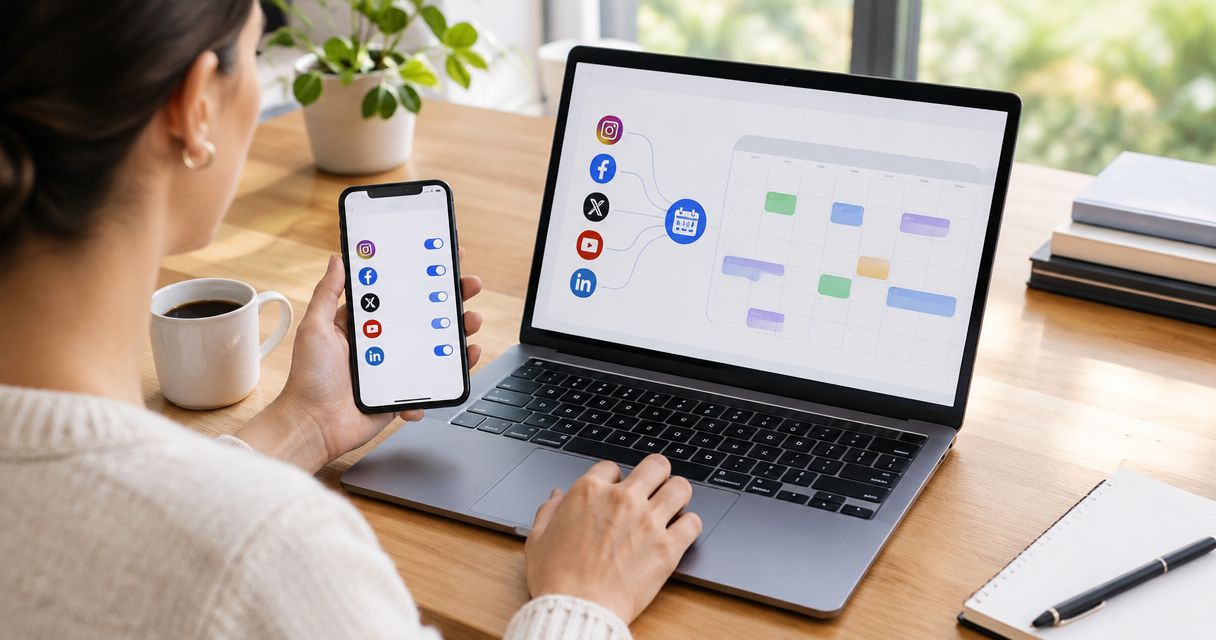
Instead of copying job photos and captions between apps, connect social media accounts to one calendar so you can plan, approve, and schedule posts in one place. For Facebook and Instagram, use Meta Business Suite; if you need other networks too, choose a scheduler that supports every account you actually use.
- Connect social media accounts to one calendar with Meta Business Suite when your business uses Facebook and Instagram.
- Check account permissions and Instagram account type before setting up your social media calendar.
- Schedule one test post before loading your content calendar with customer photos or seasonal offers.
- Moore Media Collective provides social media management for HVAC, plumbing, roofing, and landscaping companies.
Why this matters
A shared calendar keeps your crew’s job photos, your office’s announcements, and your approvals out of scattered message threads. You can see what is ready, what needs work, and what is supposed to publish next.
The calendar does not book jobs by itself. Your posts still need a clear service, a real example of your work, and a useful next step. An HVAC maintenance photo with a clear explanation beats a calendar full of empty slogans.
Moore Media Collective is best for trade owners who want agency help with websites and social media management. Review the agency’s services if you want help with the content as well as the setup.
For your 2026 setup, start with the accounts your business already maintains. Do not add another network just because a scheduler supports it.
Before you start
- Account access: Have access to your business’s Facebook Page and Instagram account. You need permission to connect accounts and publish, not just view results. Keep login recovery under the business’s control.
- Content and ownership: Gather approved job photos, captions, service details, and the name of the person who signs off. Remove customer addresses, license plates, and other identifying details unless you have permission to share them.
- The setup gotcha: Instagram publishing through business scheduling tools requires a professional account. For this Meta Business Suite workflow, connect the correct Instagram account to the correct Facebook Page before scheduling anything.
Use a desktop browser for the initial connection. Keep your phone nearby for account verification. Never send passwords through a crew group chat to get past a login problem.
Choose your calendar
“One calendar” can mean a publishing tool or a planning document. Those are different jobs. A spreadsheet can organize posts, but it does not publish them by itself.
| Option | Best for | Main advantage | Main limitation |
|---|---|---|---|
| Meta Business Suite | Trade businesses posting to Facebook and Instagram | Combines supported Meta publishing tasks in one workspace | Does not replace a scheduler for unrelated social networks |
| Multi-network scheduler | Businesses actively posting across several networks | Brings supported networks into one publishing calendar | Account types and supported post formats differ by provider |
| Shared planning sheet | Owners who want an approval list before choosing a tool | Makes captions, assets, and responsibilities easy to review | Does not connect accounts or publish without another system |
Use Meta Business Suite if Facebook and Instagram cover your actual needs. Choose a multi-network scheduler only after checking its current support for your networks, account types, and post formats.
The steps below use the Facebook-and-Instagram route. Do not enter your account credentials into a tool until you have confirmed that it supports your intended workflow.
Account connection
Start with account ownership, not the first post. Connecting the wrong Page can put a perfectly good caption in front of the wrong audience.
- Sign in to Facebook with the profile that has permission to manage your business Page. Switch into that Page before changing its connected accounts.
- Open Settings & privacy, then Settings. Find Linked accounts and select Instagram. Settings placement can differ between account views; use the Page’s settings rather than your personal profile’s settings.
- Select Connect account and complete the Instagram sign-in and permission prompts. Read the account names shown before confirming the connection.
- Open Meta Business Suite. Select the business Page you intend to use and confirm that the connected Instagram account is the correct business profile.
- Check that the person responsible for publishing can access both accounts. Keep ownership with the business, even when an employee or agency handles posting.
Expected result: Meta Business Suite shows the intended Facebook Page and Instagram account as publishing destinations. If either destination is missing, stop here and fix the connection before creating your calendar.
Do not disconnect an unfamiliar account just to clear the screen. Check who owns it first. A previous employee, another location, or an existing agency arrangement needs a deliberate handover.
Calendar settings
Your calendar needs a publishing schedule and a clear approval rule. Otherwise, it becomes another place where unfinished captions pile up.
- Open Planner in Meta Business Suite. Confirm that you are viewing the right business before adding content.
- Check the scheduling time zone wherever the tool displays it. Compare it with the local time your business uses, especially if your office and the person scheduling posts are in different locations.
- Choose a planning window of 7 days for your first batch. This is a manageable setup exercise, not a rule about how often contractors should post.
- Assign one person to approve captions and photos. Keep unapproved material as drafts rather than placing it in the publishing queue.
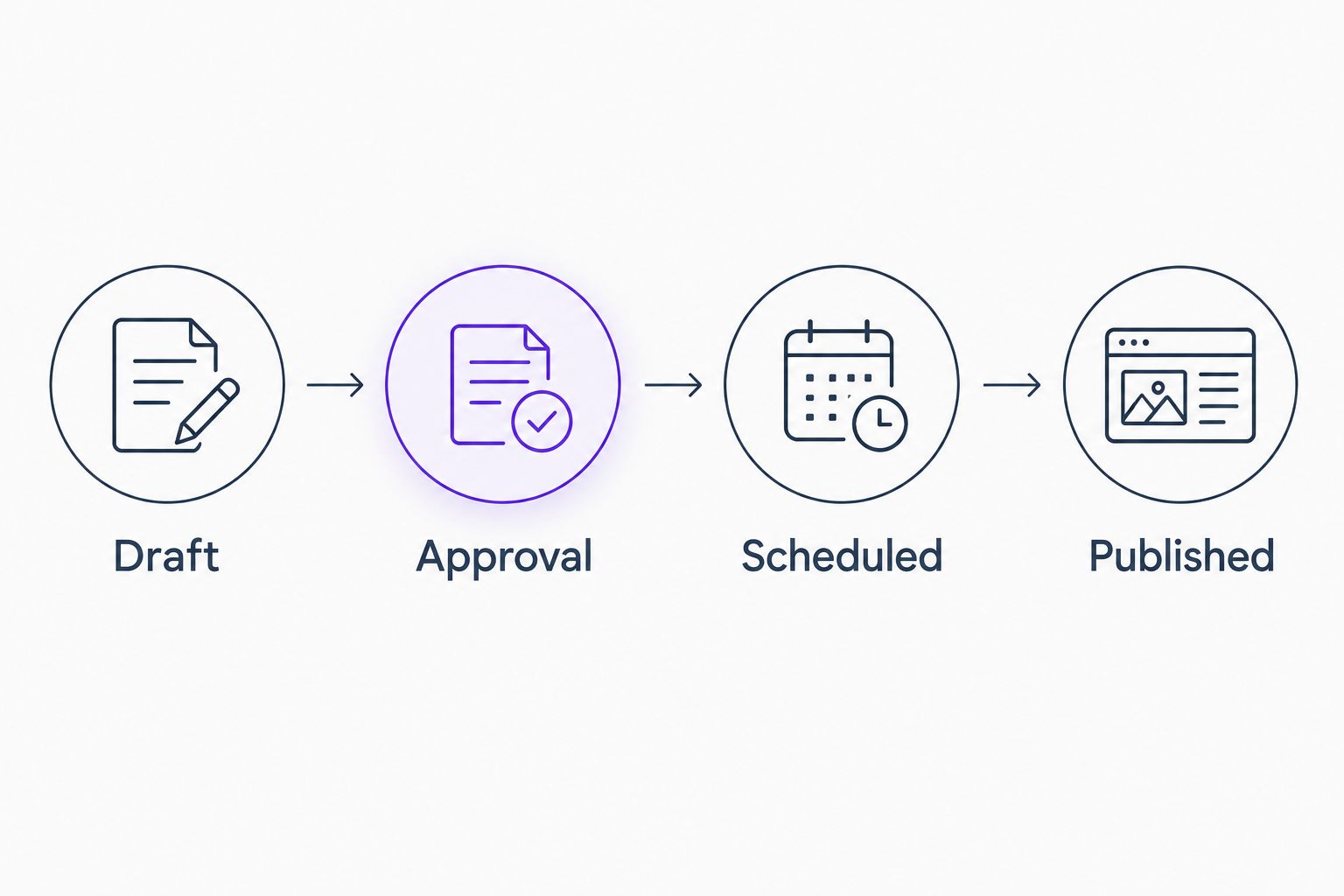
- Create a simple working checklist with these stages: Draft, Approval, Scheduled, and Published. These are your process labels, not a claim that every scheduler offers matching status fields.
Expected result: You know who approves each post, which local time controls publication, and where unfinished work belongs.
For your 2026 calendar, write the approval rule down: nothing enters the publishing queue until the designated reviewer approves the caption, image, destination, and timing. A calendar date is not approval.
Post setup
Use a low-risk test before filling the calendar. A general service introduction works better than an urgent announcement while you check the connection.
- Select Create post in Meta Business Suite. Select the intended Facebook and Instagram destinations. Confirm both account names rather than assuming the previous selection carried over.
- Add an approved photo and caption. For an HVAC company in Omaha, that might be a real maintenance photo explaining what the technician checked. Do not invent a customer story or claim a result the photo does not establish.
- Review each destination’s preview. Check image cropping, line breaks, and the call to action. A Facebook caption containing a web address does not give Instagram feed captions a clickable website link.
- Open the scheduling controls and choose a future date and time. Read the final action carefully so you schedule the post rather than publish it immediately.
- Return to Planner and open the scheduled item. Confirm the destination, image, caption, and publication time. Save a record of the approved version if approvals happen outside the tool.
Expected result: Your test appears on the calendar with the correct destinations and time. A saved draft is not a scheduled post.
A shared caption is convenient, but it can also carry the wrong instruction. Replace “use the link below” on Instagram with a direction that matches a real, working route to your business.
Keep your 2026 test post simple. Avoid customer testimonials, promotions, or time-sensitive claims until you have checked the full publishing path.
Publication check
The final check happens on the actual social profiles, not just inside the calendar.
- Let 1 test post reach its scheduled time. Open the Facebook Page and Instagram profile directly to check the result.
- Confirm that the photo displays correctly and the caption is complete. Test any clickable destination on the platform where it appears.
- Check the publishing status in Meta Business Suite. If one destination failed, do not repost to both without checking which account already published.
- Record who checks comments and messages after publication. Scheduling a post does not answer a homeowner asking whether you serve their neighborhood.
- Only then add the rest of your approved batch. Keep the first batch small enough to review without rushing.
Expected result: You have verified a live post on each intended account, not merely a successful connection screen.
For a plumber in Kansas City or a roofer in Des Moines, an unanswered service question still needs an office response. Put that responsibility beside the calendar owner’s name.
Schedule a new job post whenever approved photos arrive
Once the basic connection works, build an intake routine around completed work. Your technicians should not need publishing access just to contribute a useful photo.
Have the crew submit approved photos with the service performed, the general service area, and a plain explanation of the work. Avoid collecting customer details that the post does not need.
The office turns that material into a draft. The reviewer checks accuracy and permission. The scheduler places the approved post into an open calendar slot.
This route is best for businesses with regular job photos. Its advantage is fresh, specific material; its limitation is that someone must still check context and customer privacy.
For your 2026 workflow, keep intake separate from automatic publication. A new file in a shared folder should not count as permission to publish it.
A Denver landscaping crew might submit progress photos, while a Chicago HVAC crew submits an equipment-maintenance example. Both can use the same approval process without posting identical content.
Troubleshooting
Instagram does not appear as a destination
Check that Instagram is a professional account and that it is connected to the intended Facebook Page. Then confirm the signed-in user has the necessary access. Repeatedly creating drafts will not fix an account connection problem.
A post publishes to Facebook but not Instagram
Open the failed item and read the platform’s error. Check account authorization and whether the attached media meets the destination’s current requirements. Fix and retry only the failed destination to avoid duplicating the successful post.
A post appears at the wrong time
Compare the scheduled time and displayed time zone with your business’s local time. Review already-scheduled posts after changing settings; do not assume a settings change rewrites the existing queue.
A connection stops working
Account security changes, removed permissions, or revoked authorization can interrupt publishing access. Have the business owner or authorized administrator reconnect the account through the tool’s official sign-in flow. Review pending posts afterward.
The same post appears twice
Check for overlapping schedules in the social platform, your calendar tool, and any previous scheduler. Choose one publishing source for each post and remove the duplicate scheduled item. Do not delete a live post until you confirm which copy you intend to keep.
Customize your workflow
Make your calendar match the work you want more of. Organize approved posts around services you actually provide, useful homeowner questions, and documented examples of your work.
Use different captions when the platforms need different instructions. Keep the same underlying facts. A cropped photo or shortened caption should not change what your crew actually did.
Moore Media Collective provides social media management alongside branding and websites. That fits owners who want help producing and maintaining content; the trade-off is that an agency still needs accurate job details and timely approvals from your business.
Use the contact page to discuss that scope. Agree on responsibilities before granting access. Account access is not blanket approval to publish content or change your live website.
FAQ
How do I connect social media accounts to one calendar?
Choose a publishing tool that supports your networks, authorize each business account, and verify a scheduled test post. For Facebook and Instagram, Meta Business Suite provides a shared planning and publishing workspace.
Can I manage Facebook and Instagram in the same calendar?
Yes, Meta Business Suite supports planning and publishing for Facebook and Instagram. Connect the correct accounts and check that your permissions and Instagram account type support the intended publishing tasks.
Can I connect my personal Instagram account to this workflow?
This business publishing workflow requires an Instagram professional account. Review the account type and business connection before trying to schedule posts.
Will a shared social media calendar automatically get me more leads?
No, a shared calendar organizes publishing; it does not guarantee leads. Your content, service area, next step, and response to inquiries still matter.
Can my technicians add photos without publishing posts?
Yes, technicians can submit photos through a separate intake process without receiving publishing access. An authorized reviewer should check accuracy and permission before scheduling the material.
Do calendar edits update posts that are already live?
Do not assume calendar edits change published posts. Check the live post and use the editing controls supported by that platform and post format.
Can Moore Media Collective help manage my social media?
Yes, Moore Media Collective provides social media management for HVAC, plumbing, roofing, and landscaping companies. Agree on content responsibilities, account access, and approvals before work begins.
One last thing
Publishing is not the same as responding. Your calendar can put a good job photo in front of a homeowner, but someone still needs to answer the question underneath it. Assign that person before you schedule the next batch.